For years, AirPods users have been plagued by a mysterious phenomenon: firmware updates that seemed to happen by magic (or sometimes, not at all). Unlike iPhones or Macs, there’s no friendly notification prompting you to update your AirPods, no progress bar to watch, and certainly no button to press. This has led to countless forum threads filled with frustrated users wondering if their AirPods were even updating, what the updates contained, and how to actually make them happen. Well, the mystery is finally over. Apple has shed light on the process, and while it’s still not as straightforward as we might like, at least we now have some answers.
Essentially, AirPods firmware updates happen automatically when certain conditions are met. This “set it and forget it” approach might sound convenient, but it’s also been a source of confusion and frustration for many. Why? Because until recently, Apple provided little to no information about what triggers these updates or how to ensure your AirPods are running the latest firmware. Thankfully, Apple has finally offered some clarity, outlining the requirements and providing users with a way to check their current firmware version.
What is AirPods Firmware?
Just like your iPhone or computer, your AirPods have software that controls their functionality, and this software is called firmware. Firmware updates often include performance improvements, bug fixes, and even new features. For example, a recent firmware update for AirPods Pro brought Conversation Boost, a feature that helps users with mild hearing challenges hear conversations better in noisy environments.
Why Are Firmware Updates Important?
Keeping your AirPods firmware up-to-date is crucial for several reasons:
- Improved performance: Updates can enhance audio quality, connection stability, and battery life.
- Bug fixes: They address software glitches that may cause issues like connectivity problems, audio dropouts, or unexpected behavior.
- New features: Updates can introduce new functionalities and improvements to existing features, enhancing your overall experience.
- Security enhancements: Firmware updates may include security patches to protect your AirPods from potential vulnerabilities.
How to Update Your AirPods Firmware (The “Magic” Formula)
Here’s the thing: you can’t directly update your AirPods firmware. There’s no button to press or option to select. However, Apple has revealed that updates occur automatically when these conditions are met:
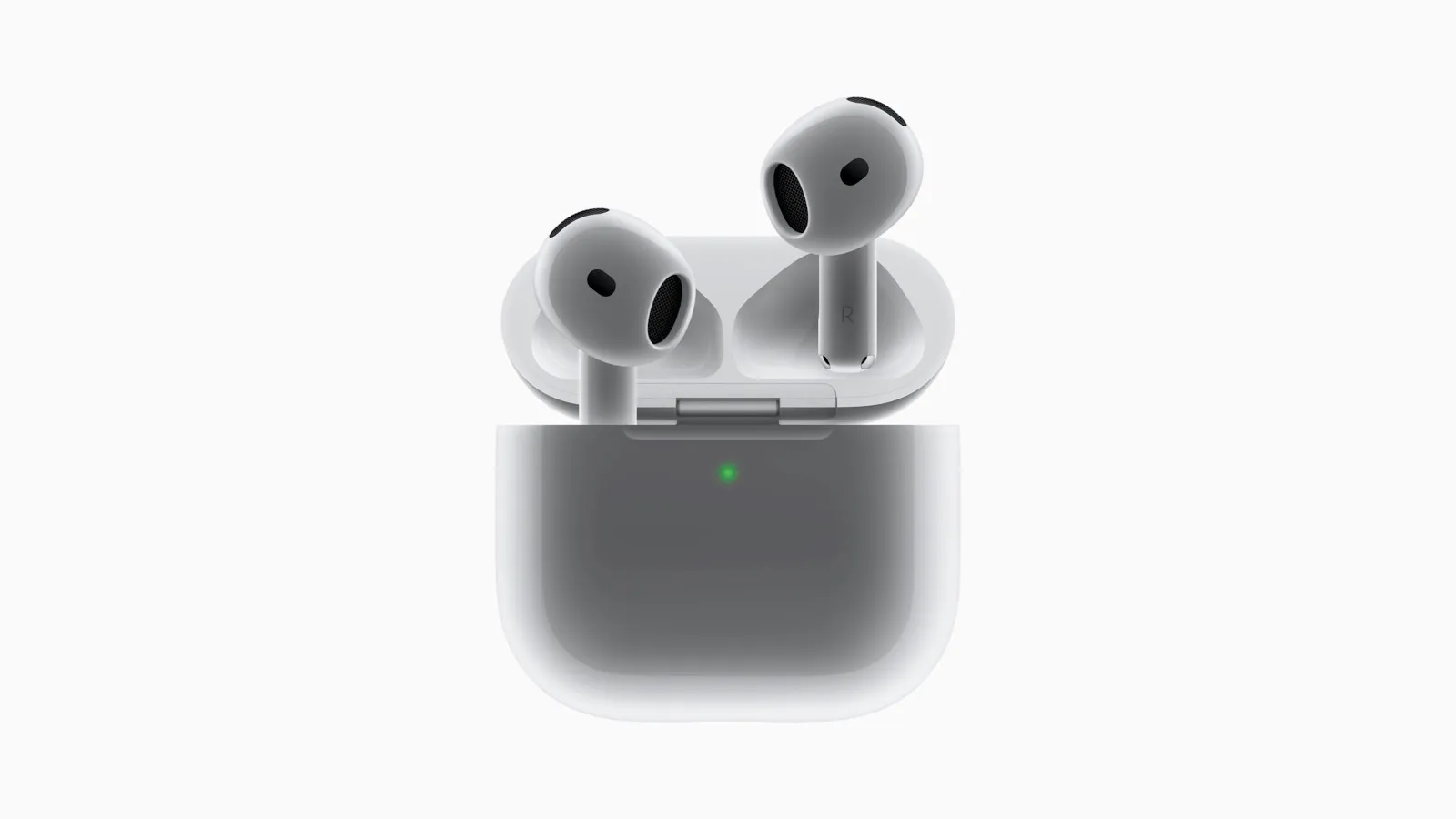
- Your AirPods are in their charging case.
- The charging case is connected to power.
- Your AirPods are within Bluetooth range of your paired iPhone or iPad.
That’s it. Essentially, you need to put your AirPods in their case, plug the case in, and keep your iPhone or iPad nearby. Apple hasn’t specified exactly how long this process takes, but it usually happens in the background and you won’t see any notification.
How to Check Your AirPods Firmware Version
While you can’t manually trigger an update, you can at least check your current firmware version to see if your AirPods are up-to-date. Here’s how:
- Connect your AirPods to your iPhone or iPad.
- Open the Settings app.
- Tap on “Bluetooth.”
- Find your AirPods in the list of devices and tap the “i” icon next to them.
- Scroll down to the “About” section. You’ll see the “Version” number listed there. This is your AirPods firmware version.
To find out if you have the latest firmware, you can compare your version number to the latest version listed on Apple’s support website.
Troubleshooting AirPods Firmware Updates
Sometimes, AirPods firmware updates don’t go as smoothly as planned. Here are some common issues and troubleshooting tips:
- AirPods not updating: If you suspect your AirPods aren’t updating, make sure they are genuinely connected to your device. Sometimes, they might appear connected in the Bluetooth settings but aren’t actively communicating. Try playing audio through them to confirm the connection. Also, ensure your iPhone or iPad has an active internet connection.
- Update taking too long: While there’s no set time for an update, if it seems to be taking an unusually long time, try restarting your iPhone or iPad and resetting your AirPods (instructions below).
- One AirPod updating but not the other: This is a rare issue, but it can happen. If one AirPod updates and the other doesn’t, try resetting both AirPods and putting them back in the case.
How to Reset Your AirPods
Resetting your AirPods can sometimes resolve firmware update issues or other connectivity problems. Here’s how to do it:
- Put your AirPods in their charging case and close the lid.
- Wait 30 seconds.
- Open the lid of the charging case.
- On your iPhone or iPad, go to Settings > Bluetooth.
- Tap the “i” icon next to your AirPods.
- Tap “Forget This Device.”
- Press and hold the setup button on the back of the charging case until the status light flashes amber and then white.
- Reconnected your AirPods to your device.
The Future of AirPods Firmware Updates
Hopefully, Apple will continue to improve the AirPods update experience. Perhaps future versions of iOS will include a dedicated section for managing AirPods, similar to the Apple Watch app. This could provide users with more information about updates, allow for manual triggering, and offer troubleshooting options.
In the meantime, we’re left with the current system. While not perfect, at least we now have a better understanding of how it works. By following the guidelines outlined in this article, you can ensure your AirPods are always running the latest firmware and performing at their best.