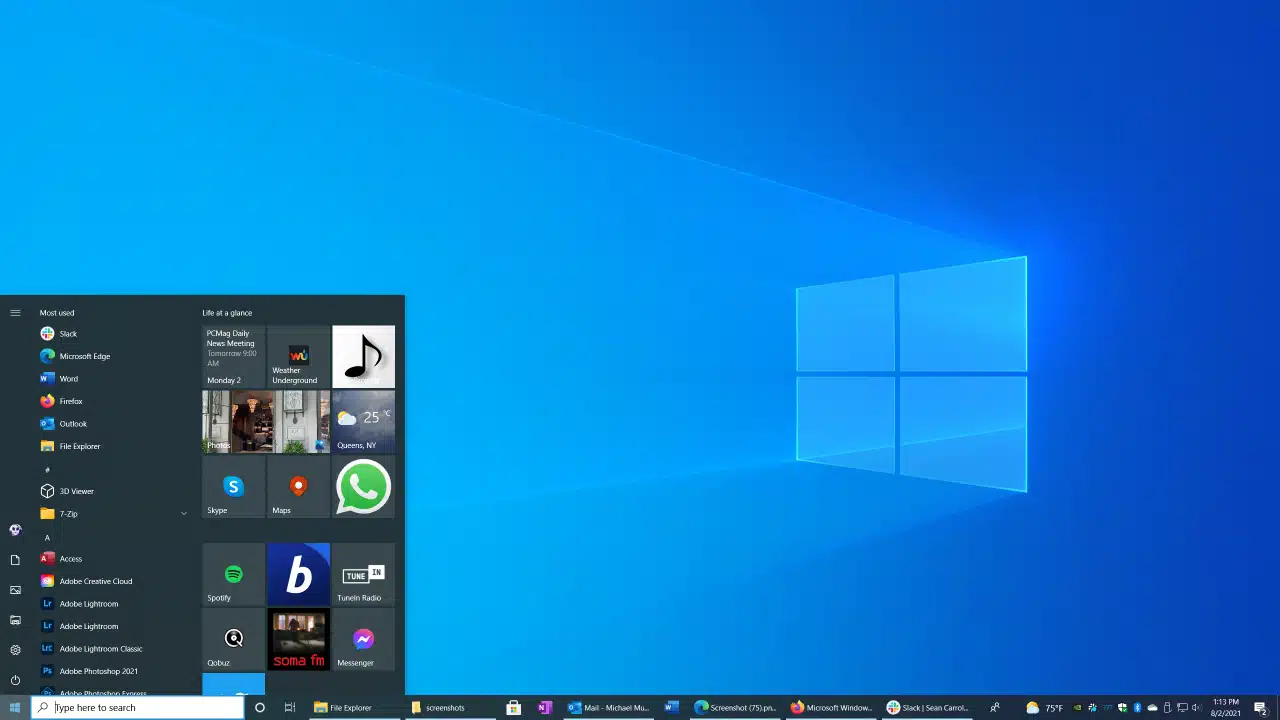
As the October 14, 2025, end-of-life date for Windows 10 looms closer, a significant number of businesses globally are still operating a substantial portion of their devices on the older operating system. This hesitation to upgrade to Windows 11, as indicated by recent industry observations and surveys, presents a growing cybersecurity risk, potentially leaving organizations vulnerable to attacks and regulatory non-compliance.
Key Takeaways:
- Windows 10 reaches its end of support on October 14, 2025.
- Millions of business devices globally still run Windows 10.
- Not upgrading to Windows 11 or securing Windows 10 through Extended Security Updates (ESU) exposes businesses to significant security risks, including ransomware and data breaches.
- Windows 11 offers enhanced, hardware-backed security features.
- Businesses must assess device compatibility, plan their migration, or consider the paid ESU program for Windows 10.
- Proactive measures, including robust endpoint protection and employee training, are crucial for Windows 10 devices.
The transition from one operating system to another within a business environment is rarely straightforward. It often involves compatibility checks, software re-certifications, user training—the list goes on. But with Microsoft’s deadline for ending support to Windows 10 clearly defined, any further delay in upgrading could put businesses in a vulnerable spot. Once October 14, 2025, passes, Windows 10 devices will stop receiving free security updates, which significantly increases the risk of exploitation.
The Looming Threat: Why Windows 10’s End of Support Matters
Microsoft’s lifecycle policy is built to ensure regular security patches, bug fixes, and updates for its operating systems. But once support ends, that safety net disappears. For Windows 10 users, this cutoff means any new vulnerability discovered after October 14, 2025, will remain unpatched.
That alone makes these devices tempting targets for cybercriminals. Here’s why it matters:
- Increased Cyberattack Surface: Without updates, Windows 10 systems are easy prey for malware, ransomware, phishing, and zero-day exploits. One compromised device can disrupt operations significantly.
- Data Breaches and Reputational Damage: Beyond financial hits, data breaches can devastate a company’s reputation. Exposure of customer data, trade secrets, or internal documents could severely erode trust.
- Regulatory Non-Compliance: Frameworks like GDPR and HIPAA require organizations to use supported software. Operating on outdated systems might violate these rules and lead to steep penalties.
- Software Incompatibility and Degraded Performance: As developers move on to Windows 11, older systems might experience bugs, lags, or full-on software breakdowns. That can stall productivity and spike IT costs.
- Higher Long-Term Costs: Delaying the upgrade may feel cheaper short term, but emergency fixes, ransomware payouts, and last-minute hardware overhauls could end up costing a lot more.
Understanding the Reluctance to Upgrade
So why haven’t all businesses made the leap yet? Well, there are several reasons:
- Hardware Requirements: Windows 11 has strict hardware prerequisites—TPM 2.0, specific processors, 4GB RAM minimum, and more. Many older business machines simply don’t make the cut, which means potential replacements.
- Application Compatibility: Even though most Windows 10 apps work on Windows 11, mission-critical or legacy applications need thorough testing. IT departments can be cautious here—and for good reason.
- Deployment Logistics: Rolling out a new OS across a company isn’t a weekend project. It involves planning, testing, user training, and the risk of downtime. For large firms, that’s a major undertaking.
- Budgetary Constraints: Cost remains a key barrier. Between buying new devices, IT staff time, and dealing with temporary productivity dips, smaller businesses might struggle to justify the immediate expense.
Securing Your Windows 10 Business Devices: A Multi-Pronged Approach
Time is ticking. If upgrading isn’t feasible just yet, it becomes critical to secure existing Windows 10 machines and explore Microsoft’s Extended Security Update (ESU) program.
Option 1: Upgrade to Windows 11
Microsoft strongly recommends this path, and for good reason. Windows 11 has baked-in defenses that make it much tougher for modern malware to find a foothold.
- TPM 2.0 & Secure Boot: These hardware-level protections encrypt sensitive data and block malware from loading during startup.
- Virtualization-Based Security (VBS) & HVCI: These features isolate key processes, making it extremely difficult for attackers to alter system files.
- Microsoft Defender SmartScreen: Blocks phishing attempts by flagging suspicious websites.
- Windows Hello: Supports passwordless logins via facial recognition or fingerprints.
- Microsoft Pluton Security Processor: Found in newer devices, this integrates security right into the chip.
- Streamlined Updates: Quicker, more efficient updates reduce system downtime.
Steps to Upgrade:
- Check Compatibility: Use Microsoft’s PC Health Check app.
- Test Applications: Run pilot tests for mission-critical apps.
- Back Up Data: Use OneDrive or secure network storage.
- Roll Out in Phases: Start with a small user group.
- Train Staff: Prep users for the new environment.
- Use Deployment Tools: Microsoft Endpoint Manager helps with automation.
Option 2: Stay on Windows 10 with ESU (Not Ideal, But Viable)
If upgrading is off the table for now, consider Microsoft’s Extended Security Updates. Here’s what you need to know:
- Eligibility: Devices must be on Windows 10 version 22H2.
- Cost: Starts around $61 per device in Year 1, doubling each year.
- Coverage: Only includes critical and important security updates. No new features.
Even with ESU, Take These Extra Steps:
- Endpoint Protection: Use tools like Microsoft Defender for Endpoint.
- Patch Other Software: Keep third-party apps up to date.
- Network Segmentation: Isolate Windows 10 machines.
- Restrict Access: Implement strict user permissions.
- Whitelist Applications: Block anything that’s not explicitly approved.
- Back Up Frequently: Off-site or cloud backups are crucial.
- Train Employees: Regular training on phishing and safe practices.
- Disable Unneeded Features: Shrink the attack surface.
- Firewall Configuration: Use strong network and host-based firewalls.
FAQ Section
Q1: What exactly does “end of support” mean for Windows 10?
A1: After October 14, 2025, Microsoft stops providing technical assistance, non-security updates, and most importantly, free security updates. Your device will still work, but it becomes much more vulnerable.
Q2: What are the main benefits of upgrading to Windows 11 for businesses?
A2: Enhanced hardware-backed security, passwordless authentication, smarter phishing protection, improved system updates, and a longer support timeline.
Q3: Can my existing Windows 10 devices run Windows 11?
A3: Not necessarily. Devices must meet minimum specs including TPM 2.0, certain CPUs, 4GB RAM, 64GB storage. Use the PC Health Check app to confirm.
Q4: What is the Windows 10 ESU program, and who is it for?
A4: A paid Microsoft program offering security updates for up to three years post-support, meant for businesses not ready to switch.
Q5: If I use the ESU program for Windows 10, am I completely secure?
A5: No. It helps, but you still need layers of defense: endpoint security, backups, strict access controls, and employee training.
Q6: What if my devices are too old for Windows 11 and I can’t afford ESU?
A6: The safest option is to replace them with Windows 11-capable hardware. Continuing to use unsupported systems opens the door to serious risks.