

Microsoft has resolved a bug in Windows 11 that broke its File History backup tool, though users must install the software fix manually. The problem surfaced following the September security patch, known as KB5124008. The flaw halted automated backups to external storage and falsely displayed a “Reconnect your drive” warning on working storage drives. Microsoft issued the solution through optional updates KB5124010 and KB5124006. Because these preview packages do not download automatically, PCs will remain unable to save fresh local file copies until users take manual action.
Key Takeaways
- Microsoft released optional patches KB5124010 and KB5124006 to fix File History in Windows 11.
- The bug began after the September update, stopping backups and falsely prompting users to reconnect drives.
- The fix will not install on its own because Windows treats preview updates as optional downloads.
- Users who skip the manual update must wait for the mandatory October Patch Tuesday release.
What Caused the Backup Failure
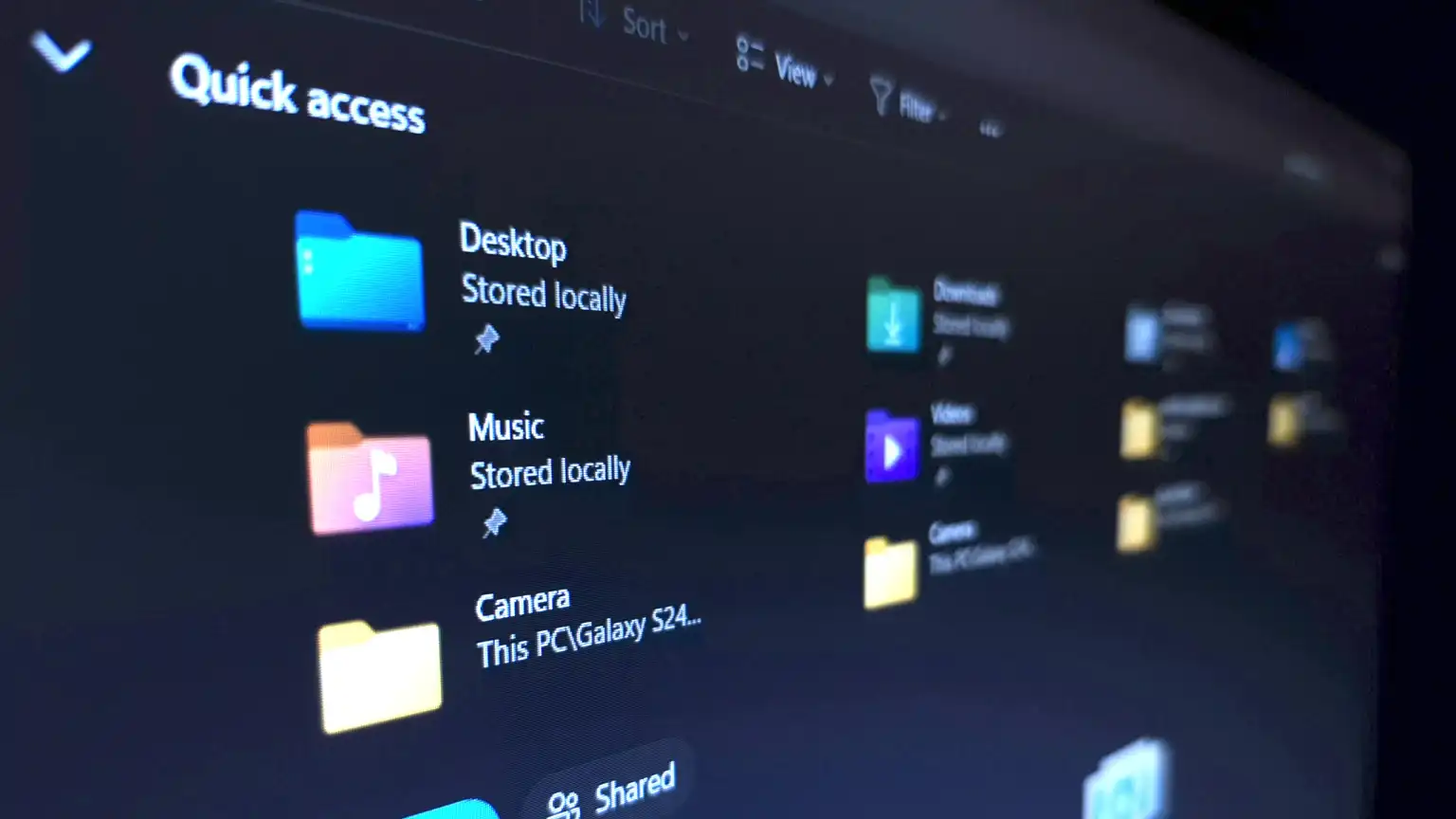
File History is a native Windows feature that automatically saves regular copies of personal folders, including Documents, Pictures, and Desktop files, to external USB drives or network storage. When Microsoft pushed update KB5124008 on Sept. 8, the software broke the background service connecting the operating system to storage disks.
Even when external hard drives remained plugged in and healthy, Windows 11 stopped saving updated file versions. The system falsely claimed the backup drive was missing and failed to refresh the timestamp for the latest backup. In several instances, the operating system recorded application crashes tied to internal system components. This left many users across India and globally unaware that their daily backup routines had quietly stalled.
How to Install the Fix
Because Microsoft released the resolution inside an optional preview update, Windows Update will not download or apply it during regular background maintenance. Users must open Settings, select Windows Update, choose Advanced options, and click on Optional updates.
Under that menu, users running Windows 11 versions 24H2 and 25H2 can select and download KB5124010. Users running version 26H1 can select KB5124006. Once the computer restarts, users should open File History through the Control Panel and select “Run now” to confirm that the storage drive connects properly. Users who prefer not to install optional preview patches can wait for the automatic October Patch Tuesday rollout, though their personal files will remain unprotected by File History until then.
Frequently Asked Questions
Q1. Why does my PC say reconnect your drive when the drive is plugged in?
A1. A software bug introduced in the September Windows update stopped the operating system from recognizing external drives for File History backups, causing a false warning prompt.
Q2. Will Windows 11 install the File History fix automatically?
A2. No. Microsoft packaged the fix into an optional preview update. Your computer will download it only if you select it manually under optional update settings.
Q3. What happens if I choose not to install the optional patch?
A3. File History will remain broken until Microsoft includes the correction in the mandatory October Patch Tuesday update.
Q4. Does File History back up my entire computer?
A4. No. File History protects personal user folders such as Documents, Desktop, and Pictures. It does not create a full system disk image.