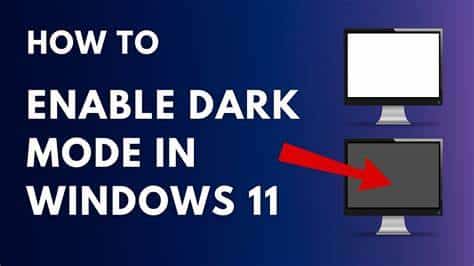
Dark Mode has become a widely appreciated feature for many users across platforms. On Windows 11, enabling Dark Mode can reduce eye strain, especially in low-light environments, and help conserve battery on OLED screens. Whether you’re aiming for a sleek aesthetic or a more comfortable computing experience, Dark Mode in Windows 11 is easy to enable and customize.
In this guide, I’ll explain how to enable Dark Mode on Windows 11 with step-by-step instructions, including additional customizations and troubleshooting tips based on my personal use of the feature.
What Is Dark Mode in Windows 11?
Dark Mode changes the default light interface of Windows to a dark one. It applies to system menus, taskbars, apps, and compatible third-party software. Unlike simple high contrast themes, it retains design elements while dimming brightness and background glare.
Step-by-Step Guide to Enable Dark Mode in Windows 11
Step 1: Open the Settings App
- Click on the Start button (Windows icon) in the taskbar.
- Select Settings from the Start menu.
- Alternatively, you can press Windows + I to open the Settings app directly.
Step 2: Navigate to Personalization
- In the left pane of the Settings window, click on Personalization.
- This section lets you modify themes, backgrounds, and colors of your Windows UI.
Step 3: Access the Colors Menu
- Under Personalization, click on Colors.
- Here you’ll find options to change the appearance of the Windows UI.
Step 4: Choose Your Mode
- Locate the section labeled Choose your mode.
- You’ll find three options in the dropdown menu:
- Light: Sets all apps and system UI to light mode.
- Dark: Sets both system UI and apps to dark mode.
- Custom: Lets you mix and match — for example, light mode for system and dark for apps.
Recommended: Select Dark to fully enable dark mode across your system and apps. If you want more control, choose Custom and manually assign dark mode to apps only.
Step 5: Apply the Settings
- Once selected, the changes will apply immediately.
- You’ll see your taskbar, Start menu, Settings app, and compatible applications switch to a dark background.
Optional: Customize Accent and Transparency Settings
Windows 11 lets you personalize how Dark Mode looks even further.
Change Accent Colors
- In the same Colors menu, scroll to Accent color.
- Choose whether Windows should automatically pick an accent color from your background or allow you to select a custom one.
- You can apply this accent color to:
- Title bars and window borders
- Start menu and taskbar highlights
Toggle Transparency Effects
- Just below the accent color section, toggle Transparency effects on or off.
- This gives your windows and menus a frosted-glass, semi-transparent appearance, which looks more polished in Dark Mode.
Apply Dark Mode to Microsoft Office and Other Apps
Some applications have their own appearance settings and don’t follow system theme automatically.
For Microsoft Office:
- Open Word or Excel.
- Click File > Account.
- Under Office Theme, select Dark Gray or Black.
For Google Chrome and Other Browsers:
- Chrome: Type chrome://settings/appearance in the address bar and switch to Dark or set it to System default.
- Firefox: Go to Settings > General > Website appearance, then choose Dark.
Enable Automatic Switching Between Light and Dark Modes
While Windows 11 doesn’t offer built-in scheduling for theme switching, you can automate this with a free third-party app.
Use Auto Dark Mode:
- Download Auto Dark Mode from the Microsoft Store.
- Install and launch the app.
- Set start and end times for Light and Dark Modes, or link the change to sunrise and sunset times.
This tool has been a personal favorite. I use it to automatically enable Dark Mode after 7 p.m. and revert to Light Mode at 7 a.m., which fits my workflow and reduces eye fatigue during nighttime use.
Troubleshooting Tips
If Dark Mode doesn’t apply as expected:
- Restart Your System
Sometimes, a restart helps apply theme changes across all system components.
- Update Your System
Make sure Windows 11 is up to date:
- Go to Settings > Windows Update.
- Click Check for updates.
- Check App Settings
Some apps don’t follow system settings and require manual configuration.
- Confirm Windows Edition
Ensure you’re running Windows 11 and not Windows 10, as the steps and settings might differ.
Benefits of Using Dark Mode
- Reduced Eye Strain: Especially useful at night or in dim environments.
- Battery Saving: On OLED or AMOLED screens, darker themes consume less power.
- Improved Focus: Darker colors reduce visual clutter.
- Stylish Appearance: Offers a clean and modern look.
From personal experience, I noticed fewer headaches and reduced glare when working long hours, especially while writing or editing documents at night.
Conclusion
Enabling Dark Mode in Windows 11 is simple, fast, and offers both aesthetic and practical benefits. Whether you want to reduce eye strain, save battery on your laptop, or just prefer the look, Dark Mode can enhance your user experience. Windows 11 also gives you the flexibility to customize it to your liking—from accent colors to app-specific themes.
By following the steps in this guide, you’ll be able to enable and personalize Dark Mode easily and effectively.