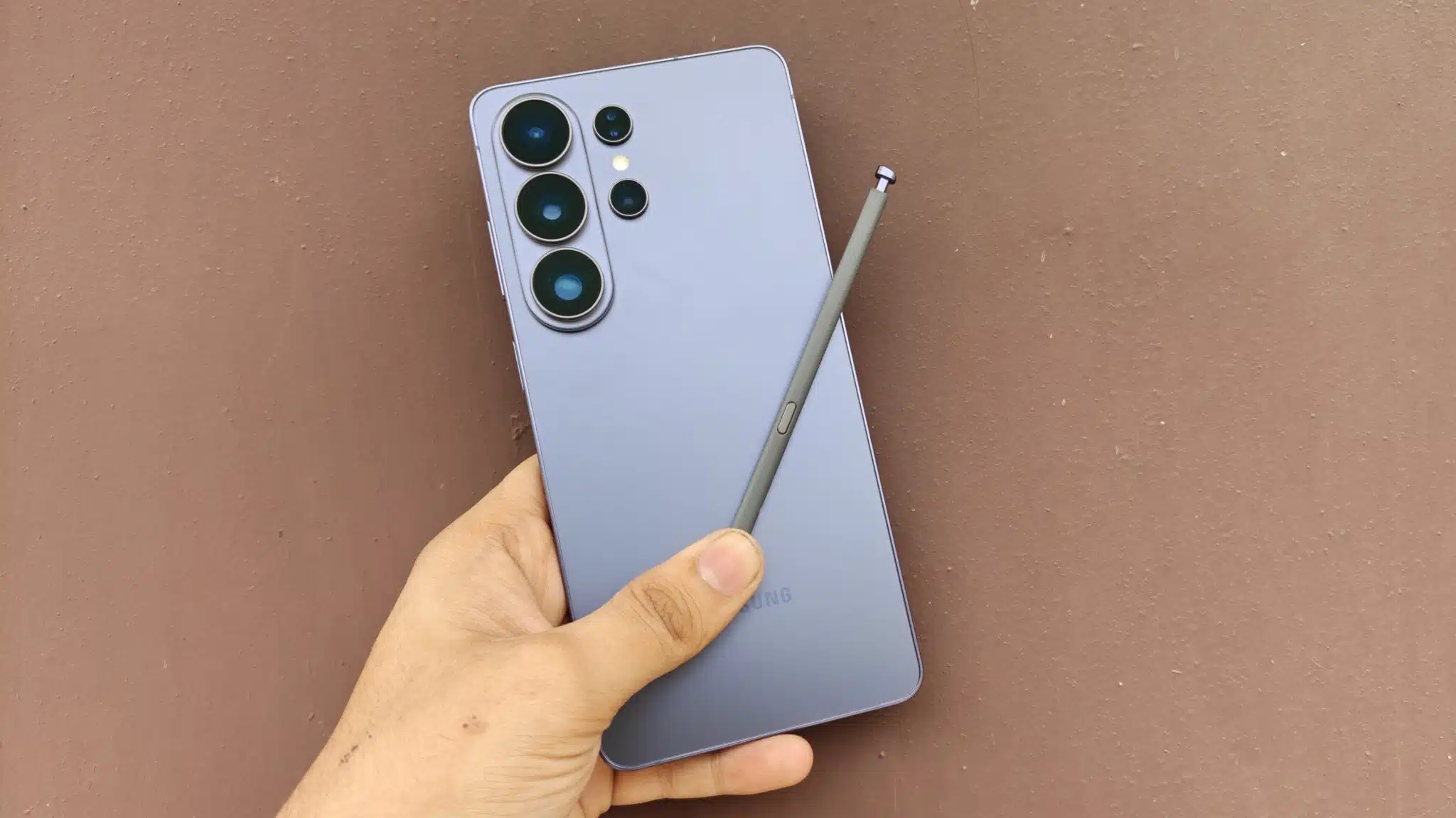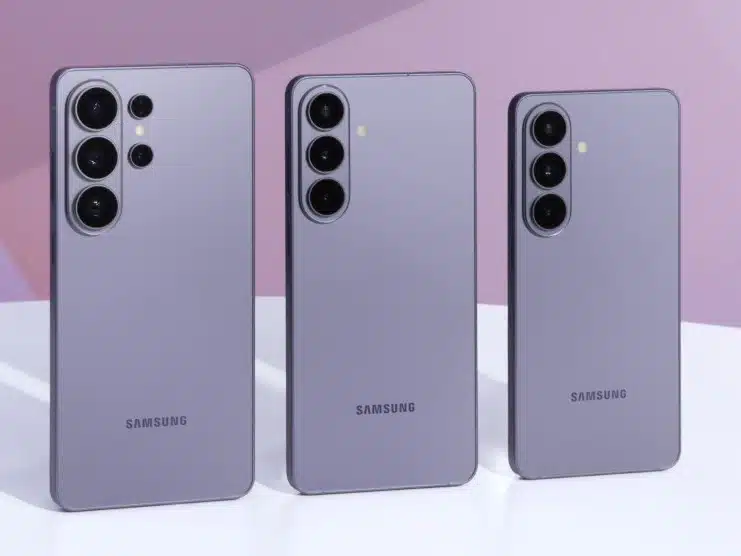
Samsung has issued a significant advisory to millions of its Galaxy smartphone users, urging them to activate a suite of vital One UI security features. This directive comes amid a growing global concern over smartphone theft and unauthorized access to personal data. The technology giant emphasizes that proactive activation of these built-in protections is essential for users to safeguard their devices and sensitive information, especially in high-risk scenarios.
- Key Takeaways:
- The Rising Tide of Smartphone Theft and Data Breach Concerns
- New and Enhanced Theft Protection Features in One UI 7
- Activating Samsung’s Key Security Features
- Beyond Anti-Theft: A Comprehensive Security Ecosystem
- The Foundation: Samsung Knox
- The Importance of User Awareness and Proactive Measures
- FAQ Section
Key Takeaways:
- Samsung is actively encouraging Galaxy users to activate key One UI security features, including new anti-theft measures.
- The push is a response to increasing phone theft incidents and the need for enhanced data protection.
- One UI 7 introduces advanced “Theft Protection” features like Identity Check and Security Delay.
- Existing features such as Theft Detection Lock, Offline Device Lock, and Remote Lock are being emphasized and expanded.
- Users can activate these features primarily through the “Security and privacy” section in their device settings.
- Other important features like Auto Blocker, Maintenance Mode, Message Guard, and Secure Folder contribute to a comprehensive security posture.
- Samsung’s Knox platform provides a foundational, multi-layered security architecture from the chip level up.
The recent push from Samsung is not merely a suggestion but a clear call to action for its vast user base. As smartphones become increasingly central to our digital lives, holding everything from financial details to personal memories, their security is paramount. Samsung’s One UI, the custom Android overlay for Galaxy devices, offers a robust set of security tools, many of which require user activation to be fully effective. The company is now making it clear that enabling these features is a crucial step in protecting against evolving threats.
The Rising Tide of Smartphone Theft and Data Breach Concerns
Smartphone theft continues to be a significant problem worldwide. Thieves often target devices not just for their resale value, but for the wealth of personal data they contain. A stolen phone can quickly become a gateway to bank accounts, social media profiles, email, and other sensitive information, leading to financial fraud, identity theft, and severe privacy breaches. In response to these escalating risks, Samsung has invested heavily in developing and integrating advanced security measures within its One UI ecosystem.
The company’s latest One UI 7 update, which has begun rolling out to compatible Galaxy devices, brings with it several new and enhanced security capabilities designed specifically to combat phone theft and unauthorized access. These features work in conjunction with the foundational security provided by Samsung Knox, a defense-grade security platform embedded in Galaxy hardware from the moment of manufacture.
New and Enhanced Theft Protection Features in One UI 7
With One UI 7, Samsung has introduced a suite of “Theft Protection” features, building upon existing Android safeguards. These new additions are particularly aimed at more sophisticated theft scenarios, including those where a thief might have gained knowledge of the device’s PIN.
- Identity Check: This feature adds an extra layer of biometric authentication for sensitive security settings. If your phone is in an unfamiliar location, any attempt to change critical security settings will require your fingerprint or face scan. This means that even if a thief manages to guess or obtain your PIN, they won’t be able to easily alter your device’s security protocols or access highly sensitive data without your biometric verification. This is particularly relevant for settings related to remote wiping or locking.
- Security Delay: A critical component of Identity Check, Security Delay introduces a one-hour waiting period if someone attempts to reset biometric data on your device. This crucial buffer provides a window of opportunity for the legitimate owner to remotely lock or wipe the stolen phone using another connected device, such as a PC or tablet, before unauthorized access can occur. This feature is designed to frustrate thieves who might immediately try to disable biometric security upon stealing a device.
These new features complement existing robust anti-theft capabilities that Samsung is also encouraging users to activate and ensure are configured properly:
- Theft Detection Lock: This intelligent feature uses machine learning to detect motions commonly associated with phone theft, such as snatching. Upon detecting such suspicious movement, the device instantly locks the screen, blocking unauthorized access almost immediately. This rapid response can prevent a thief from even gaining initial access to the lock screen.
- Offline Device Lock: Many theft scenarios involve disconnecting the stolen device from networks. Offline Device Lock automatically locks the screen if the device remains disconnected from cellular or Wi-Fi networks for an extended period. This provides protection even when the device is offline, making it harder for thieves to bypass security by simply turning off connectivity.
- Remote Lock: This feature, accessible through Samsung’s “Find My Mobile” service (part of SmartThings Find), allows users to remotely lock their device if it has been lost or stolen. Users can access the SmartThings Find website, sign in with their Samsung account, and then lock the device. This function can also be used to display a custom message on the lock screen with contact information for its return, though caution is advised regarding sharing personal details.
Activating Samsung’s Key Security Features
Samsung has streamlined the process of activating these critical security measures within One UI. Users are encouraged to regularly review their security settings to ensure all protective features are enabled.
To activate the “Theft Protection” features (Identity Check, Security Delay, Theft Detection Lock, Offline Device Lock, Remote Lock):
- Open the Settings app on your Samsung Galaxy device.
- Navigate to Security and privacy.
- Look for the section titled Lost device protection or similar, and then tap on Theft protection.
- Within this menu, you will find options to enable “Identity Check,” “Security Delay,” “Theft Detection Lock,” and “Offline Device Lock.” Ensure these toggles are switched on.
- Remote Lock functionality is managed through the SmartThings Find service (formerly Find My Mobile), which generally requires your Samsung account to be logged in on the device. To confirm its activation, within “Security and privacy,” tap on Find My Mobile and ensure “Allow this phone to be found” and “Remote controls” are enabled.
Beyond Anti-Theft: A Comprehensive Security Ecosystem
While anti-theft measures are critical, Samsung’s One UI offers a broader array of security and privacy features that users should also activate and understand. These include:
- Auto Blocker: This feature provides extra protection against malicious activity and unauthorized applications. When enabled, Auto Blocker can prevent the installation of apps from unauthorized sources (sideloading), block harmful commands delivered via USB cables (useful when charging in public places), and check apps for malware. To enable Auto Blocker:
- Go to Settings.
- Tap on Security and privacy.
- Select Auto Blocker.
- Toggle the feature On.
- Maintenance Mode: Designed to protect your personal data when your device is sent for repair, Maintenance Mode creates a separate, temporary user account. In this mode, your personal data, including photos, messages, and contacts, remains hidden and inaccessible to technicians. Only pre-installed applications are available. Any data or accounts generated within Maintenance Mode are automatically deleted upon exit. To activate Maintenance Mode:
-
- Open Settings.
- Go to Battery and device care.
- Select Maintenance Mode.
- Tap Turn on. You will be prompted to restart your device.
- To exit, return to the Maintenance Mode setting and tap Exit, then confirm with your lock screen credentials.
- Message Guard: This advanced “sandbox” feature isolates incoming image files, preventing malicious code embedded within them from interacting with your phone’s operating system or accessing other files. This acts as a virtual quarantine, protecting against zero-click exploits often delivered through image and media messages. Message Guard is typically enabled by default on newer devices but checking its status under “Security and privacy” is advisable.
- Secure Folder: For those who wish to keep their most personal and sensitive information completely separate, Secure Folder provides an encrypted space on your device. Data, apps, and files moved into Secure Folder are isolated from the main system, requiring a separate authentication (PIN, pattern, password, or biometric) to access. This adds a robust layer of protection for confidential documents, private photos, and sensitive applications. To set up Secure Folder:
-
- Go to Settings.
- Tap on Security and privacy.
- Select Secure Folder.
- Follow the on-screen prompts to set up your lock type and add files or apps.
The Foundation: Samsung Knox
Underlying all these software features is Samsung Knox, a multi-layered security platform integrated into Samsung devices from the hardware level up. Knox provides real-time protection, data encryption, and data isolation, ensuring that even if a device is compromised, sensitive information remains secure. It continuously monitors for unauthorized changes to the device’s core system (kernel) and blocks them in real time. Knox’s robust security has earned it certifications from various government agencies worldwide, underscoring its reliability in protecting sensitive data.
The Importance of User Awareness and Proactive Measures
Samsung’s current advisory highlights a critical aspect of digital security: technology provides the tools, but user awareness and proactive activation are essential. Many users might not be fully aware of the extent of security features available on their Galaxy devices or the simple steps required to enable them. This public warning serves as a reminder that taking a few minutes to configure these settings can significantly enhance the security of their personal data and device.
Regular software updates, including those part of One UI, often contain crucial security patches and new features designed to counter emerging threats. Keeping your device’s software up to date is another fundamental security practice. Samsung is committed to delivering timely security maintenance releases (SMRs) that include both Google’s Android Security Bulletins and Samsung-specific vulnerability exposures (SVEs).
In an increasingly connected world where personal data is a valuable target, understanding and utilizing the security features provided by device manufacturers is no longer optional. Samsung’s clear message to its millions of users underscores the shared responsibility in maintaining digital security. By activating these important One UI security features, Galaxy users can take concrete steps to fortify their devices against theft and unauthorized access, ensuring greater peace of mind.
FAQ Section
Q1: What specifically is Samsung urging millions of users to activate?
A1: Samsung is urging millions of Galaxy users to activate key One UI security features, particularly new and enhanced anti-theft protections such as Identity Check and Security Delay, alongside existing features like Theft Detection Lock, Offline Device Lock, and Remote Lock.
Q2: How do the new “Theft Protection” features in One UI 7 work?
A2: One UI 7’s “Theft Protection” includes “Identity Check,” which requires biometric authentication for sensitive security settings in unfamiliar locations, and “Security Delay,” which imposes a one-hour waiting period for biometric resets, giving users time to remotely lock a stolen phone.
Q3: Where can I find and enable these security features on my Samsung Galaxy phone?
A3: Most of these security features can be found by going to Settings > Security and privacy. Within this section, you’ll find options for “Lost device protection” (for anti-theft features), “Auto Blocker,” and “Secure Folder.” “Maintenance Mode” is typically under Settings > Battery and device care.
Q4: Is “Find My Mobile” still relevant, and how does it relate to these new features?
A4: Yes, “Find My Mobile” (now part of SmartThings Find) is still relevant. It provides crucial remote control capabilities like Remote Lock and remote data deletion. The new anti-theft features in One UI 7 enhance its effectiveness, particularly in scenarios where a thief might have acquired your PIN.
Q5: What is Samsung Knox, and how does it contribute to device security?
A5: Samsung Knox is a multi-layered, defense-grade security platform built into Galaxy devices from the hardware level. It provides real-time protection, data encryption, and data isolation, creating a secure environment that protects against malware, unauthorized access, and other threats from the moment the device is powered on.
Q6: What is Auto Blocker, and why should I activate it?
A6: Auto Blocker provides extra protection against malicious activity. It can prevent the installation of apps from unofficial sources, block harmful commands via USB connections, and check for malware. Activating it helps protect your device from various digital threats.
Q7: When should I use Maintenance Mode on my Samsung phone?
A7: Maintenance Mode should be used when you send your Samsung phone for repair. It creates a temporary, isolated user profile, hiding all your personal data (photos, messages, contacts) from the technician, ensuring your privacy during the repair process.
Q8: What is Samsung Message Guard, and how does it protect my device?
A8: Samsung Message Guard is an advanced security feature that “sandboxes” or isolates incoming image files. This prevents malicious code embedded within these files from accessing your phone’s operating system or other data, protecting against zero-click exploits.