Windows comes with a basic screen reader called Narrator. It reads what is displayed on the screen, including the contents of the active window, menu options, or text that’s typed/entered. Having said that, what is the use of such an application? Well, people with vision problems find it difficult at times to read texts from Text Editors. Hence, narrator comes forth as a utility of special worth as it works with applications like Notepad, WordPad and others. Here’s a tutorial explaining how to turn Narrator on and choose different settings.
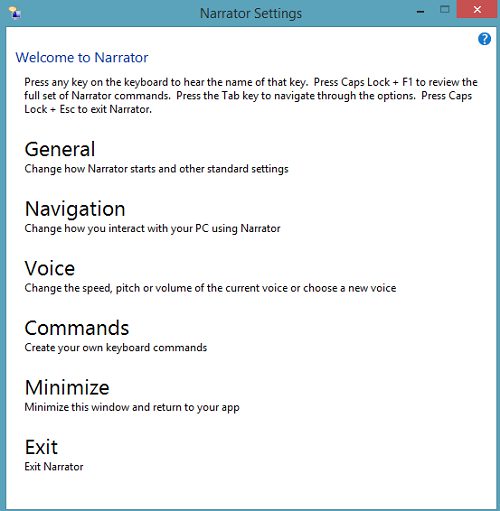
Enabling Narrator in Windows 8.1
Open the Charms Bar by moving the mouse cursor to the lower-left corner of your computer screen or press Windows +C in combination. Next, choose the ‘Settings’ icon and then select ‘Change PC Settings’ option. From the left-pane, select ‘Ease Of Access’. Here, you will find that ‘Narrator’ is turned OFF by default. Slide the bar to opposite end to enable the Narrator. Now, choose a VOICE for the narrator. 3 voices are offered by Microsoft.
- David
- Hazel
- Zira
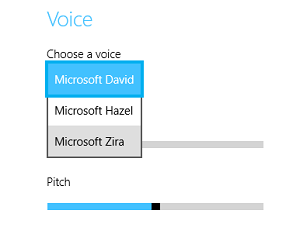
The first is a male voice while other two are of female having different voice texture. Also, if you observe below the voice option, there is an option to adjust the speech and many more. Some more customizing options can be found under ‘Sounds You Hear’ and ‘Cursors and Keys’ section.