Scheduling text messages can be a great way to manage communication efficiently. Whether you want to send reminders, birthday wishes, or important information at a specific time, Samsung Galaxy phones offer a simple built-in feature to schedule SMS messages without needing third-party apps. This guide will walk you through the process in detail, ensuring you never miss the right moment to send a message.
Why Schedule Text Messages?
Scheduling messages allows you to:
- Send messages at appropriate times, even if you’re busy.
- Plan reminders or notifications in advance.
- Ensure timely greetings or professional communications.
- Manage multiple contacts without manual effort.
Step 1: Open the Samsung Messages App
- Tap the Messages app icon on your Samsung Galaxy home screen or app drawer.
- This is Samsung’s default SMS and MMS messaging app.
Step 2: Compose a New Message
- Tap the Compose button (usually a plus sign or pencil icon).
- Select or enter the recipient’s phone number or contact name.
- Type your message in the text input box.
Step 3: Access the Scheduling Feature
- After typing your message, look for the + (plus) icon or three-dot menu in the message input area.
- Tap this icon to reveal additional options.
- Select Schedule message from the menu.
Step 4: Set the Date and Time for Sending
- A calendar and clock interface will appear.
- Choose the exact date and time you want the message to be sent.
- Confirm your selection.
Step 5: Confirm Scheduled Message
- The message input area will now show a clock icon or label indicating the scheduled send time.
- Tap Send or the scheduled message icon to finalize scheduling.
Step 6: Manage Scheduled Messages
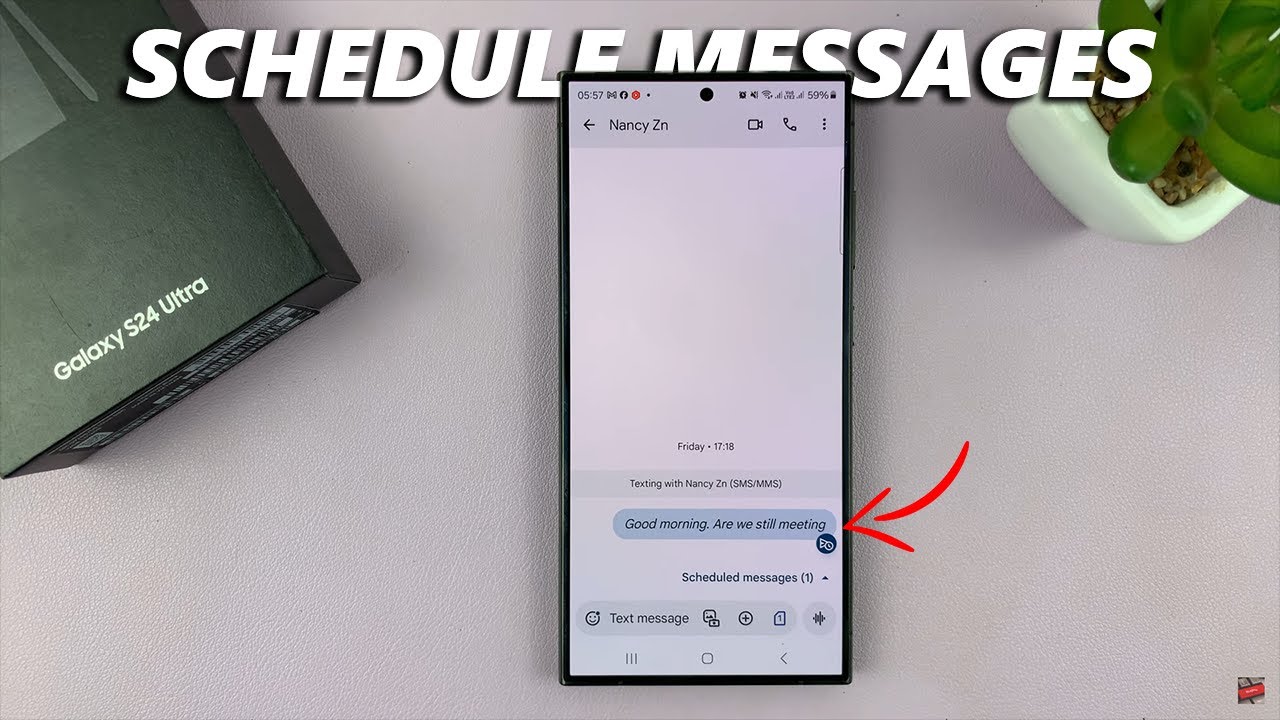
- Scheduled messages appear in the conversation thread with a clock icon.
- You can tap the scheduled message to edit, reschedule, or delete it before it is sent.
- This flexibility helps you adjust plans as needed.
Additional Tips for Samsung Message Scheduling
- You can schedule messages for both individual contacts and group chats.
- The feature supports SMS and MMS messages, including photos and videos.
- Scheduled messages send automatically at the set time, provided your phone is powered on and has network coverage.
- You can schedule multiple messages for different times.
Troubleshooting Common Issues
- Scheduled message not sending: Check your network connection and battery.
- Cannot find scheduling option: Ensure you are using Samsung’s default Messages app, not a third-party SMS app.
- Editing scheduled messages is disabled: Reschedule by deleting and creating a new scheduled message if necessary.
- Message delay or failure: Update your Messages app and Samsung system software.
Personal Experience
I have found scheduling texts on my Samsung Galaxy helpful during busy days, ensuring I don’t forget important follow-ups. The built-in scheduler is reliable and easy to use without extra apps cluttering my phone.
Conclusion
Scheduling text messages on a Samsung Galaxy is straightforward and efficient using the default Messages app. By following these steps, you can plan your communication ahead and avoid missed opportunities. Regular use of this feature enhances personal and professional communication with minimal effort.