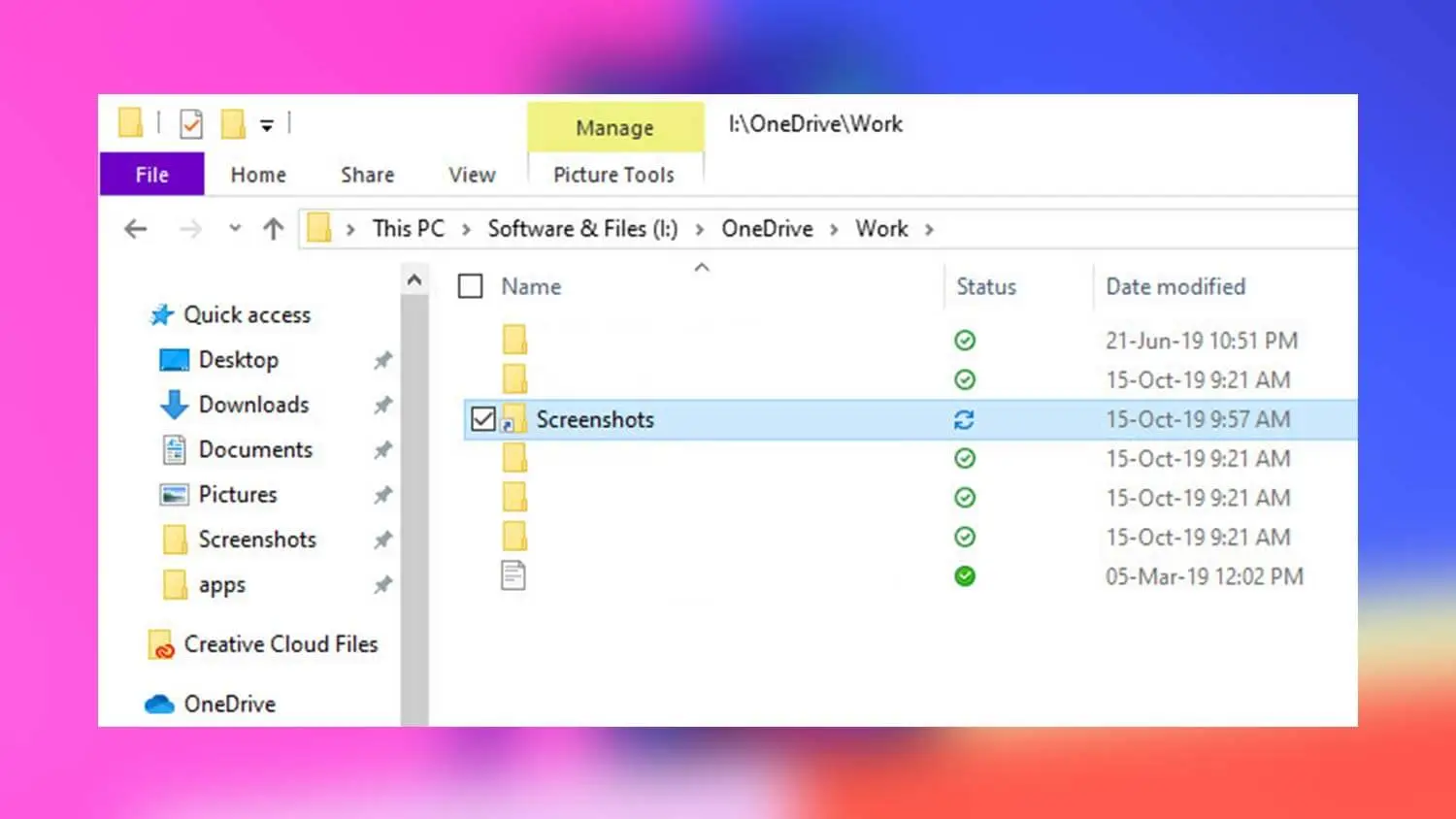
Syncing OneDrive with local folders on your Windows PC is essential for seamless access to your files across devices. It ensures your important documents, photos, and work files are always backed up and accessible, even when offline. In this guide, I will explain how to set up and troubleshoot OneDrive folder syncing efficiently, based on thorough research and my own experience using OneDrive daily.
What Is OneDrive Sync?
OneDrive sync is the process where files and folders on your Windows PC are automatically updated with your Microsoft OneDrive cloud storage. When you save or edit a file locally, the changes are uploaded to OneDrive online, and vice versa. This keeps your data consistent and accessible from any device connected to your Microsoft account.
Why Sync OneDrive with Local Folders?
- Automatic backup: Files are saved to the cloud instantly, protecting you from data loss.
- Access anywhere: Sync lets you open and edit files offline, and changes sync back when connected.
- Collaboration: Share synced folders with others and work on files together.
- Save space: Use OneDrive’s Files On-Demand feature to keep files online-only and free up local storage.
Step-by-Step: How to Sync OneDrive with Local Folders in Windows
Step 1: Install and Set Up OneDrive on Windows
Most Windows 10 and 11 PCs come with OneDrive pre-installed. If you don’t have it:
- Download OneDrive from the official Microsoft website.
- Run the installer and complete the setup.
Once installed:
- Open OneDrive from the Start menu or taskbar.
- Sign in with your Microsoft account.
Step 2: Choose Folders to Sync
By default, OneDrive syncs files from its own folder (C:\Users\<username>\OneDrive). To sync other local folders, you have two main options:
Option A: Move or Copy Files into the OneDrive Folder
The simplest method is to move or copy your local folders into the OneDrive folder. Files placed here will automatically sync.
- Open File Explorer.
- Drag and drop the folder you want to sync into the OneDrive folder.
- OneDrive will start syncing these files automatically.
Note: This method requires moving files physically, which might not be ideal if you want to keep original folder locations.
Option B: Use OneDrive Folder Backup (Known Folder Move)
Windows 10 and 11 offer a feature to back up common folders like Desktop, Documents, and Pictures directly to OneDrive, without moving them manually.
To enable this:
- Right-click the OneDrive icon in the system tray.
- Select Settings.
- Go to the Backup tab.
- Click Manage backup.
- Toggle on Desktop, Documents, and Pictures.
- Click Start backup.
This keeps those folders synced to OneDrive while retaining their original locations.
Step 3: Sync Other Local Folders Outside Default Paths
If you want to sync folders outside Desktop, Documents, or Pictures, OneDrive does not support this natively. However, you can use Symbolic Links (symlinks) to trick OneDrive into syncing any folder.
Here is how:
- Close OneDrive temporarily (right-click OneDrive icon > Close OneDrive).
- Move the folder you want to sync into your OneDrive folder.
- Open Command Prompt as Administrator.
- Run this command:
bash
Copy
mklink /d “Original_Folder_Path” “OneDrive_Folder_Path”
For example:
bash
Copy
mklink /d “C:\Users\YourName\MyProjects” “C:\Users\YourName\OneDrive\MyProjects”
This creates a link at the original location pointing to the folder inside OneDrive. OneDrive syncs the folder, but you access it normally from the original location.
- Restart OneDrive.
Step 4: Verify Sync Status and Settings
- Click the OneDrive icon in the system tray.
- Check for the green check marks on files and folders, indicating successful sync.
- If you see a sync icon or error, click for details.
- Use the Settings > Account tab to see how much space is used and manage linked PCs.
Step 5: Use Files On-Demand to Save Local Space
OneDrive’s Files On-Demand feature lets you see all your files but download them only when needed.
To enable:
- Open OneDrive Settings.
- Under the Settings tab, check Save space and download files as you use them.
- Files with a cloud icon are online-only; double-click to download.
Troubleshooting Common Issues
OneDrive Not Syncing Local Folders
- Ensure OneDrive is running and signed in.
- Check internet connection.
- Verify you have permission to access folders.
- Restart OneDrive: Right-click icon > Close > Reopen.
- Reset OneDrive if needed: Run onedrive.exe /reset from Run dialog.
Symbolic Links Not Working
- Confirm the command prompt is running as administrator.
- Check the folder paths are correct.
- Avoid creating symlinks on network drives.
Files Not Showing in OneDrive Online
- Confirm files are saved in synced folders.
- Sync might be paused — resume syncing from the OneDrive menu.
- Files On-Demand may delay download — manually open the file to trigger.
Personal Tips from Experience
- I prefer backing up Documents and Desktop using OneDrive’s Folder Backup feature rather than moving files manually.
- For project folders outside standard locations, using symlinks works well to keep my workflow unchanged.
- Regularly checking the OneDrive sync status avoids surprises.
- Avoid syncing very large folders or system folders to prevent performance issues.
- Keep OneDrive updated to access the latest features and fixes.
Conclusion
Syncing OneDrive with local folders in Windows can be straightforward or advanced depending on your needs. Using OneDrive’s built-in Folder Backup for Desktop, Documents, and Pictures is the easiest way to keep files synced without relocating them. For other folders, symbolic links offer a powerful workaround. Monitoring sync status and understanding OneDrive settings ensures your data stays safe and accessible.