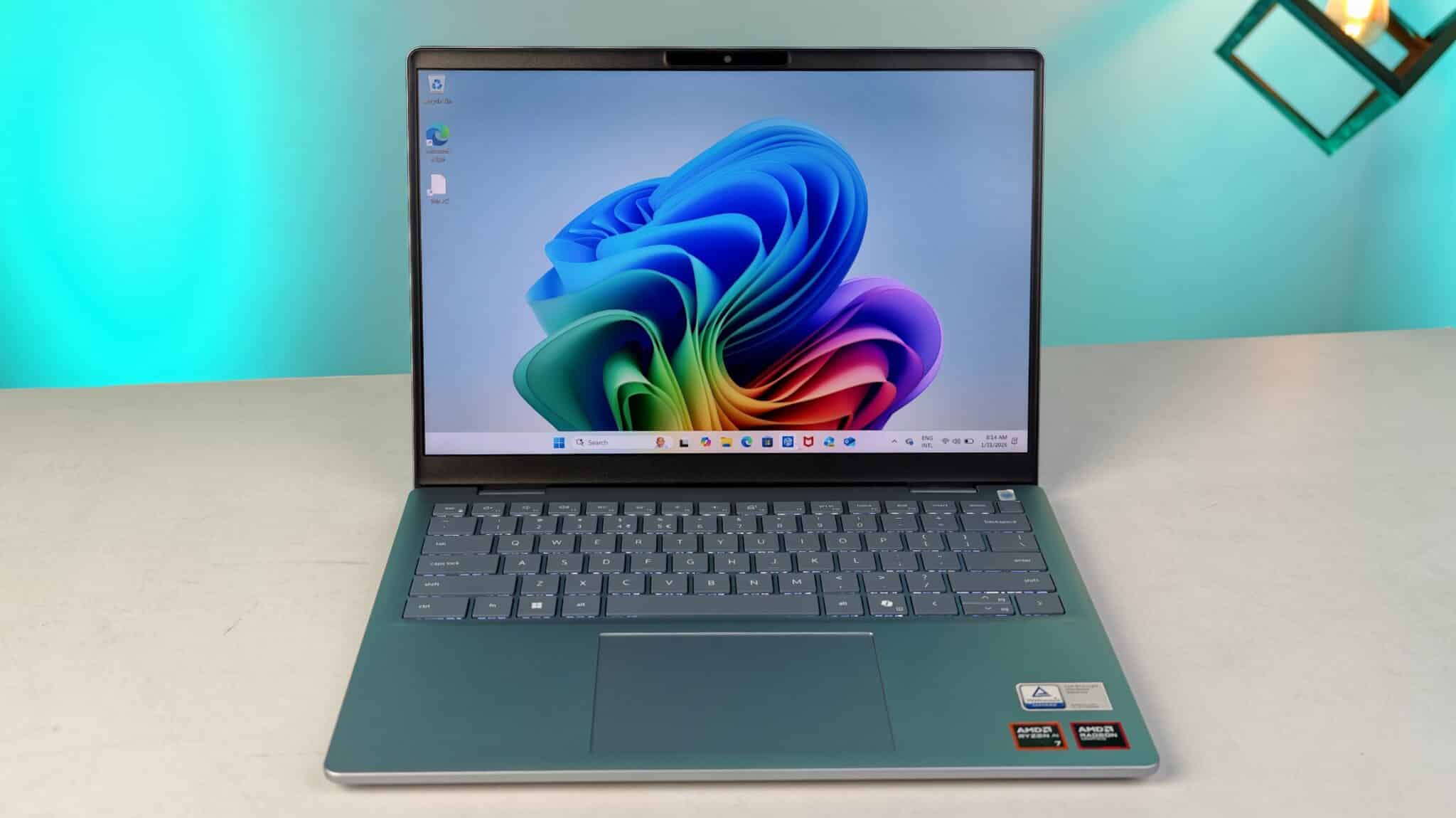

Windows 11, while a sleek and modern operating system, can sometimes throw curveballs. Whether it’s sluggish performance, unexpected errors, or connectivity issues, troubleshooting can feel like navigating a maze. Over the years, I’ve wrestled with my fair share of Windows 11 quirks. Through trial and error (and a few frantic Google searches), I’ve discovered four crucial settings that often hold the key to resolving common problems.
-
Power Options: Striking the Balance Between Performance and Efficiency
Windows 11, like its predecessors, offers various power plans designed to balance performance with energy consumption. While the “Balanced” plan is the default, it might not be optimal for everyone. If you’re experiencing sluggishness, especially during demanding tasks, your power plan could be the culprit.
My Experience: I vividly remember struggling with lag while editing videos on my laptop. After some digging, I realized the “Power saver” plan was active, limiting my CPU’s performance. Switching to the “High performance” plan made a world of difference!
Here’s how to check your power plan:
- Open the Settings app (Windows Key + I)
- Navigate to System > Power & battery
- Under Power mode, select the Best performance option.
Pro Tip: If you’re on a laptop, remember that the “High performance” plan will consume more battery. Adjust accordingly based on your needs and whether you’re plugged in.
-
Windows Update: Keeping Your System Current and Secure
Windows Update is your gateway to the latest features, bug fixes, and security patches. Neglecting updates can lead to instability, performance issues, and even security vulnerabilities.
My Experience: I once encountered persistent network connectivity problems that seemingly appeared out of nowhere. It turned out a recent Windows update had introduced a bug affecting my Wi-Fi adapter. Thankfully, Microsoft swiftly released a patch that resolved the issue.
Here’s how to check for updates:
- Open the Settings app (Windows Key + I).
- Go to Windows Update.
- Click Check for updates.
Pro Tip: While it’s crucial to stay updated, some updates can occasionally cause unexpected issues. If you notice problems after an update, you can uninstall it by going to Windows Update > Update history > Uninstall updates.
-
Storage Sense: Reclaiming Valuable Disk Space
A cluttered hard drive can significantly impact your PC’s performance. Windows 11’s Storage Sense feature helps you automatically free up space by deleting temporary files, old versions of Windows, and unused files.
My Experience: My laptop once ground to a halt, with applications taking forever to load. I discovered my system drive was almost full! Enabling Storage Sense and running a manual cleanup instantly improved responsiveness.
Here’s how to configure Storage Sense:
- Open the Settings app (Windows Key + I).
- Go to System > Storage.
- Turn on Storage Sense.
- Click on Storage Sense to customize its settings (e.g., how often to run, what to delete).
Pro Tip: Regularly cleaning up your hard drive is essential for optimal performance. Consider using third-party tools like CCleaner for more advanced cleanup options.
-
Startup Apps: Taming the Resource Hogs
Many applications automatically launch when you start your PC, consuming valuable system resources and slowing down boot times. Managing your startup apps can make a noticeable difference in how quickly your system becomes usable.
My Experience: My PC used to take an eternity to boot. After examining the startup apps, I found a bunch of unnecessary programs launching in the background. Disabling the ones I didn’t need significantly reduced my boot time.
Here’s how to manage startup apps:
- Open the Settings app (Windows Key + I).
- Go to Apps > Startup.
- Toggle off any apps you don’t need to launch automatically.
Pro Tip: Be cautious when disabling startup apps. Some apps, like antivirus software or cloud storage clients, might be essential for your workflow.
Going Beyond the Basics
While these four settings are my go-to starting points for troubleshooting, Windows 11 offers a wealth of other options for fine-tuning your system. Here are a few additional areas to explore if you’re still experiencing issues:
- Device Manager: Check for driver updates or conflicts.
- System File Checker: Scan for and repair corrupted system files.
- Disk Cleanup: Manually delete temporary files and unnecessary data.
- Task Manager: Identify resource-intensive processes that might be causing slowdowns.
Remember, troubleshooting is often a process of elimination. By systematically checking these settings and exploring other diagnostic tools, you can pinpoint the root cause of your Windows 11 woes and restore your PC to its optimal performance.