Panic is setting in for millions of Windows 10 users. The deadline for free upgrades to Windows 11 is fast approaching, leaving many with PCs that simply don’t meet the requirements scratching their heads. What happens when the free ride ends? And more importantly, what can you do about it if your trusty machine is stuck in the past? With roughly six months left to take action before support for certain Windows 10 versions starts to dwindle, the pressure is on. Let’s break down why this is happening and explore the five crucial options you have.
Microsoft officially launched Windows 11 in October 2021, and since then, it has offered a free upgrade path for most compatible Windows 10 devices. This generous offer was designed to encourage widespread adoption of the new operating system. However, the key word here is “compatible.” Windows 11 brought with it stricter hardware requirements, primarily focusing on security and modern processing capabilities.
One of the biggest hurdles for older PCs is the requirement for a Trusted Platform Module (TPM) 2.0 chip. This security feature, often absent in older machines, is now mandatory for running Windows 11. Additionally, the processor must be from a relatively recent generation to ensure optimal performance and security. Microsoft maintains that these requirements are essential for a more secure and reliable computing experience.
For many users, this means their perfectly functional Windows 10 PCs are deemed ineligible for the free upgrade. The official end date for the free upgrade offer has not been explicitly stated by Microsoft, but it is widely expected to coincide with the end of mainstream support for Windows 10, which is October 14, 2025. After this date, while some extended security updates (ESU) might be available for a fee for certain editions, the writing is on the wall: Windows 10’s time in the spotlight is nearing its end.
This situation can evoke a range of emotions – frustration, confusion, and even a sense of being left behind. You’ve likely invested time and money in your current PC, and the thought of it becoming obsolete or unsupported can be unsettling. So, what are your options as the clock ticks down? Here are five paths you can consider:
-
Investigate Further: Is Your PC Truly Incompatible?
Before you resign yourself to a new purchase or other alternatives, take a moment to double-check your PC’s compatibility. Sometimes, the initial checks might be misleading. Microsoft provides a “PC Health Check” app that offers a more detailed analysis of your system. You can download this tool from the official Microsoft website. Run the app and carefully review the results. It will pinpoint exactly which requirements your PC fails to meet.
For instance, while the TPM 2.0 requirement is firm, sometimes TPM 1.2 might be present but not enabled in the BIOS settings. Similarly, some older processors might technically run Windows 11 with workarounds, although this is generally not recommended by Microsoft and could lead to instability or lack of support in the future. However, understanding the specific limitations will help you make an informed decision about the next steps.
-
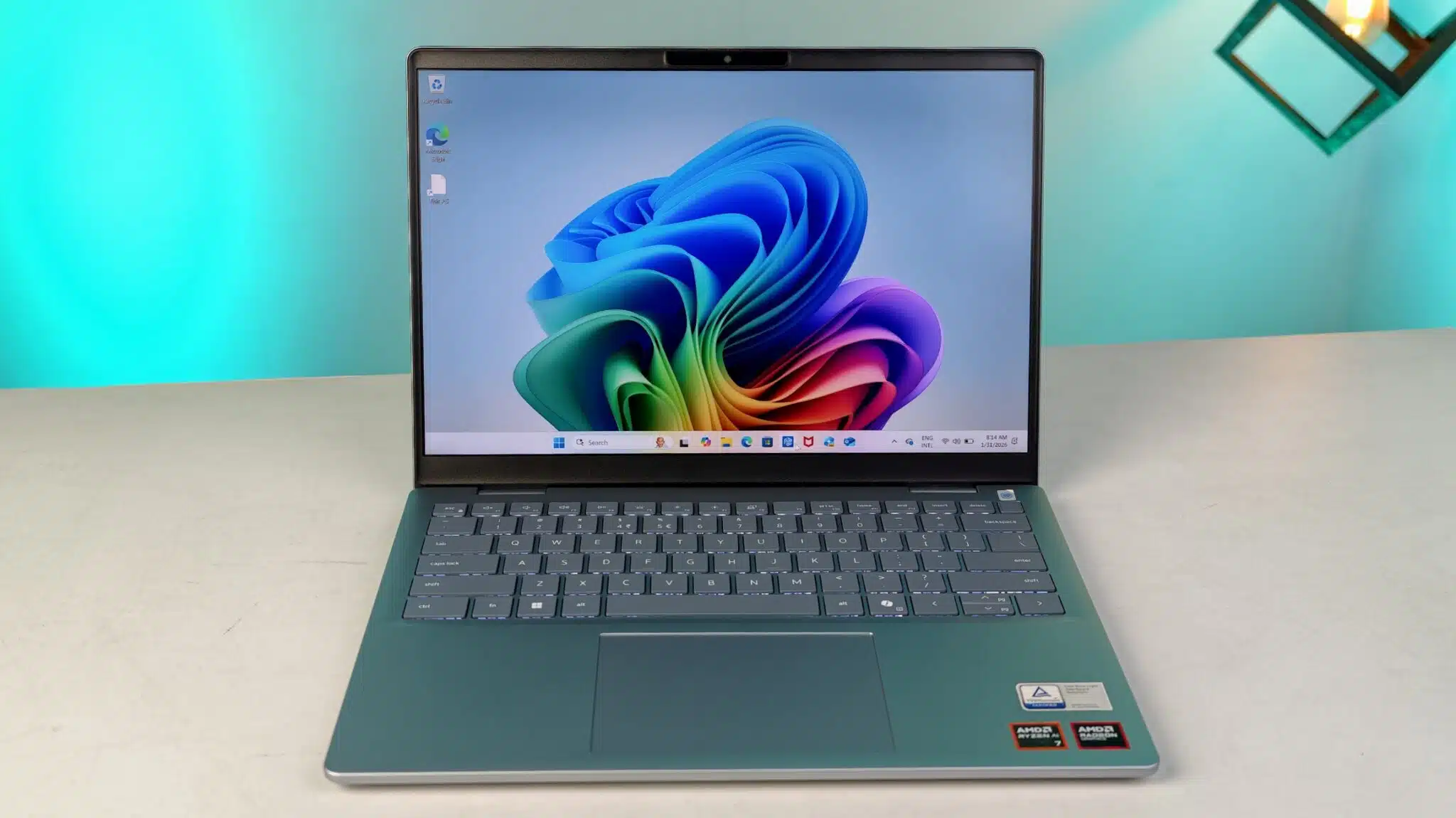
Bite the Bullet: Purchase a New Windows 11-Ready PC.
This is the most straightforward solution, albeit potentially the most expensive. If your current PC is significantly older or you need an upgrade anyway, this might be the right time to invest in a new machine that comes pre-loaded with Windows 11. New PCs will not only meet the minimum hardware requirements but also offer the latest features, performance improvements, and security updates.
Consider your needs and budget when exploring this option. Do you need a high-powered gaming rig, a sleek laptop for work on the go, or a basic desktop for everyday tasks? Research different brands and models, read reviews from reputable tech websites, and compare prices before making a purchase. Keep an eye out for deals and promotions, especially as the Windows 10 support deadline approaches, as retailers might offer discounts on newer models.
-
Explore Linux: A Viable Alternative Operating System.
If the cost of a new PC is prohibitive or you’re comfortable with a different operating system, consider exploring Linux. Linux is an open-source operating system that comes in various “distributions” or versions, many of which are lightweight and can run smoothly on older hardware. Popular distributions like Ubuntu, Linux Mint, and Fedora are user-friendly and offer a wide range of free software for everyday tasks like Browse the web, writing documents, and managing photos.
Switching to Linux does involve a learning curve, and some Windows-specific applications might not be directly compatible. However, many popular programs have Linux alternatives, and web-based applications are generally accessible across platforms. This option can breathe new life into an older PC and keep it running securely without the need for expensive hardware upgrades. Numerous online resources and communities can help you get started with Linux.
-
Stick with Windows 10 (But Understand the Risks).
You might be tempted to simply continue using your Windows 10 PC after the support deadline. While your computer will likely continue to function, this option comes with significant security risks. After October 14, 2025, Microsoft will no longer provide regular security updates for most versions of Windows 10. This means your system will become increasingly vulnerable to malware, viruses, and other cyber threats.
Continuing to use an unsupported operating system is akin to leaving your front door unlocked. While it might seem convenient in the short term, the potential consequences for your data and privacy can be severe. If you choose this path, it is crucial to take extra precautions, such as using a robust antivirus software, being extremely cautious about opening suspicious emails or clicking on unfamiliar links, and avoiding storing sensitive information on the PC. However, this is generally not a recommended long-term solution.
-
Consider Upgrading Specific Hardware Components (If Possible).
In some cases, your Windows 10 PC might be close to meeting the Windows 11 requirements, and upgrading a specific hardware component could make it compatible. For example, if your motherboard has a slot for a TPM module, you might be able to purchase and install one. Similarly, if your processor is just below the requirement, a motherboard and CPU upgrade might be feasible, although this can be complex and costly.
Before considering hardware upgrades, thoroughly research your PC’s specifications and the compatibility of new components. Ensure that your motherboard supports the new hardware and that your power supply can handle the increased power consumption. This option is generally more suitable for users with some technical expertise or those willing to seek professional assistance. It’s also important to weigh the cost of the upgrade against the price of a new PC to determine the most economical solution.
The Time to Act is Now.
Regardless of the option you choose, the key takeaway is that you need to take action within the next six months. The end of the free Windows 11 upgrade window and the approaching Windows 10 support deadline create a sense of urgency. Ignoring the situation will likely lead to increased costs or security risks down the line.
Take the time to assess your current PC, understand its limitations, and carefully consider the five options outlined above. Whether you decide to invest in a new machine, explore the world of Linux, or attempt a hardware upgrade, proactive planning will ensure a smoother transition and a more secure computing experience in the future. Don’t wait until the last minute – the clock is ticking!