Google officially released PC Connect this week, a new first-party application that lets users stream their Windows PCs directly to Android XR headsets. It feels like a meaningful step for people who have been waiting for a more native and less complicated way to bring a full desktop into a virtual space. The app is still in beta, available first on the Samsung Galaxy XR, which is the debut headset running on the Android XR platform. Even so, the core idea is already clear. You can pull your computer into a large virtual display while keeping other XR apps running nearby, which perhaps makes the headset feel a little more like a real workstation.
Key Takeaways
- Google released the PC Connect app in beta to stream Windows computers to Android XR headsets.
- The application supports high-resolution streaming for work and low-latency performance for gaming.
- A new auto-stereo feature converts standard 2D PC games into 3D experiences in real-time.
- Users can control both the headset and the computer using a single keyboard, mouse, or gamepad.
- Gemini AI creates a new way to get help by viewing and analyzing the content on your streamed PC screen.
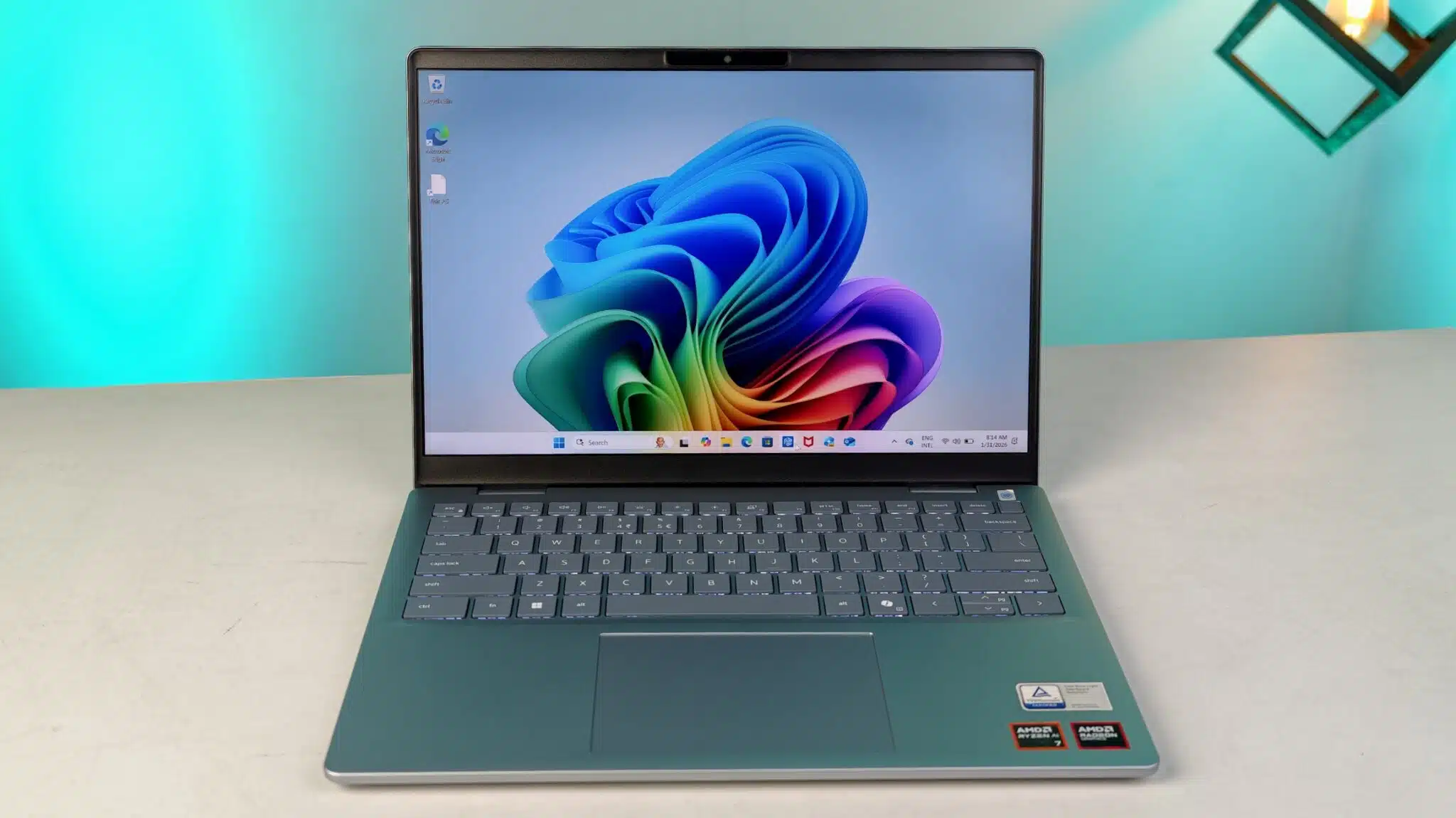
There is a practical focus on streaming clarity and responsiveness. PC Connect sends the Windows desktop to the headset at a high resolution, so text stays crisp, something that matters more than people realize when they try to work in VR. You can mirror the full desktop or pull out individual windows, depending on whatever feels more natural. One small but genuinely helpful detail is the input crossover. You can use the same keyboard and mouse to control both the PC and the Android XR interface. That might sound like a minor convenience, though in day-to-day use it could eliminate a lot of small annoyances that come from juggling multiple input devices.
Gaming gets its own share of attention, too. Google added low-latency streaming to keep gameplay responsive and smooth. Perhaps the most interesting feature is the auto-stereo tool. It analyzes the live video feed of standard 2D PC games and converts them into stereoscopic 3D in real time. It is a bit surprising to see this kind of automated depth reconstruction offered so directly, and while it may not be perfect for every title, the idea of taking a familiar Steam game and experiencing it with added depth inside a headset is compelling. Gamepads are supported as well, so players can treat the virtual display much like a giant floating monitor.
The inclusion of Gemini AI introduces another layer that feels new for this type of streaming setup. Since Gemini runs at the system level on Android XR, it can actually see whatever is being streamed from the PC. That means users can ask questions about the content right on their screen, whether they are editing a document, browsing images, or stuck on a particular game section. It is the kind of feature that might evolve over time, but even now it hints at a more fluid way of getting help without breaking immersion.
PC Connect is free to download and use, which naturally positions it as an appealing alternative to paid options such as Virtual Desktop. Google has not yet announced Mac support, though many users may be hoping it arrives later. For now, the focus is clearly on Windows streaming, and the early beta suggests Google is trying to make Android XR more capable for both work and play in a way that feels straightforward rather than overly technical.
Frequently Asked Questions
Q. Is the PC Connect app free to use?
A. Yes, Google offers PC Connect as a free first-party application for Android XR users.
Q. Which headsets currently support PC Connect?
A. The app is available on headsets running Android XR, such as the Samsung Galaxy XR.
Q. Does PC Connect work with Mac computers?
A. No, the current beta only supports Windows PCs. Google plans to add Mac support in 2026.
Q. Can I play Steam games using PC Connect?
A. Yes, you can stream games from Steam or other PC launchers to your headset and play them with a controller.
Q. Do I need a fast internet connection for this to work?
A. You need a strong local Wi-Fi connection, preferably Wi-Fi 6 or 6E, to ensure low latency and high-quality streaming.