

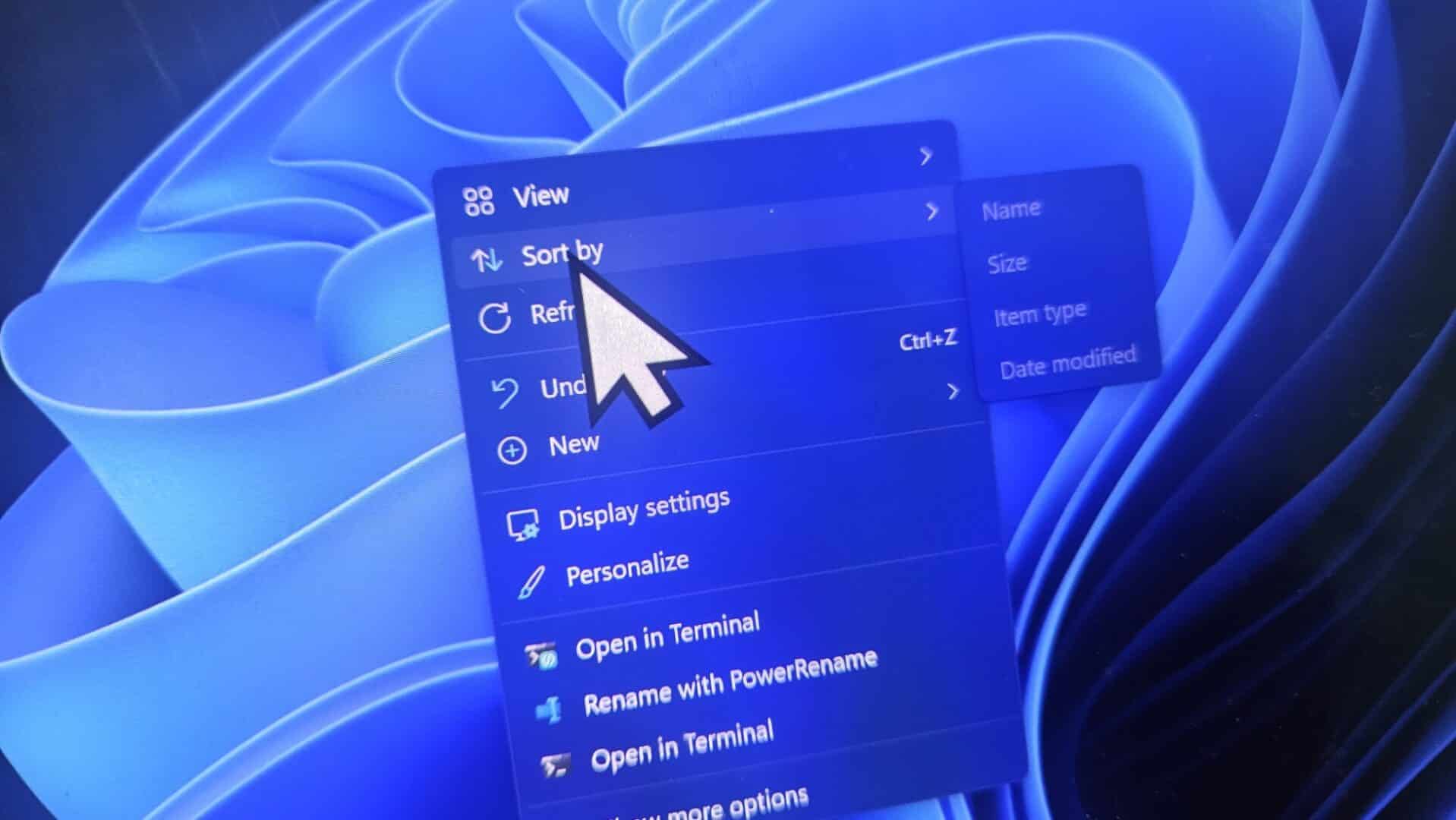
Microsoft has released an optional update for Windows 11 that cleans up the desktop search interface by removing unwanted Bing suggestions, news feeds, and promotional ads. The non-security update, designated as KB5120998, is available for systems running Windows 11 version 24H2 and version 25H2. It shifts the built-in search tool back to a local-first system, allowing users to find installed software, documents, and system settings quickly without waiting for web results to load.
Key Takeaways
- Update KB5120998 eliminates promotional web results, MSN feeds, and Bing clutter from the Windows 11 search window.
- New toggles in system settings allow users to turn off online web results and Microsoft Store suggestions entirely.
- The updated search tool handles common spelling mistakes and supports quick two-character file lookups.
- Microsoft is enabling these interface changes gradually across supported systems.
Cleaner Interface and Dedicated Web Toggles
For years, Windows users have complained about the built-in search bar loading web links and MSN trending topics when they only wanted to open a local program. Microsoft addresses this issue by simplifying the search home window. The updated layout removes promotional recommendations and replaces them with a clean list of recent searches.
Users also get dedicated controls to manage their search experience. By navigating to Settings, selecting Privacy and Security, and opening Search, users can switch off web results as well as Microsoft Store recommendations. Disabling these options stops Windows from sending search queries to Bing servers, which reduces input lag and prevents unrelated online links from crowding the results pane.
Smarter File Finding and Typo Tolerance
The update improves how Windows indexes and categorizes search matches. Each result now displays a clear badge indicating whether the item is a local app, a system setting, a local document, or a cloud file. This distinction helps users avoid accidental clicks on web links when trying to change computer settings.
Microsoft has also upgraded the search algorithm to tolerate spelling errors. If a user types a fractured query with dropped letters, such as “utlook”, the search engine still identifies and displays Microsoft Outlook right away. The update also adds support for short, two-letter file queries and reduces app crashes during heavy indexing tasks.
How to Install the Update
Because KB5120998 is an optional preview release, Windows Update will not install it automatically. Users who want the new search experience today can open Settings, go to Windows Update, select Advanced Options, and click on Optional Updates to download the package.
Microsoft is distributing the interface changes through a phased rollout. As a result, some computers may require a few days after installation for the new search toggles to appear in the settings menu. Users who prefer to avoid optional preview updates can wait for the mandatory monthly security patch release, which will include these changes by default.
Frequently Asked Questions
Q1. What is the build number for the latest Windows 11 optional update?
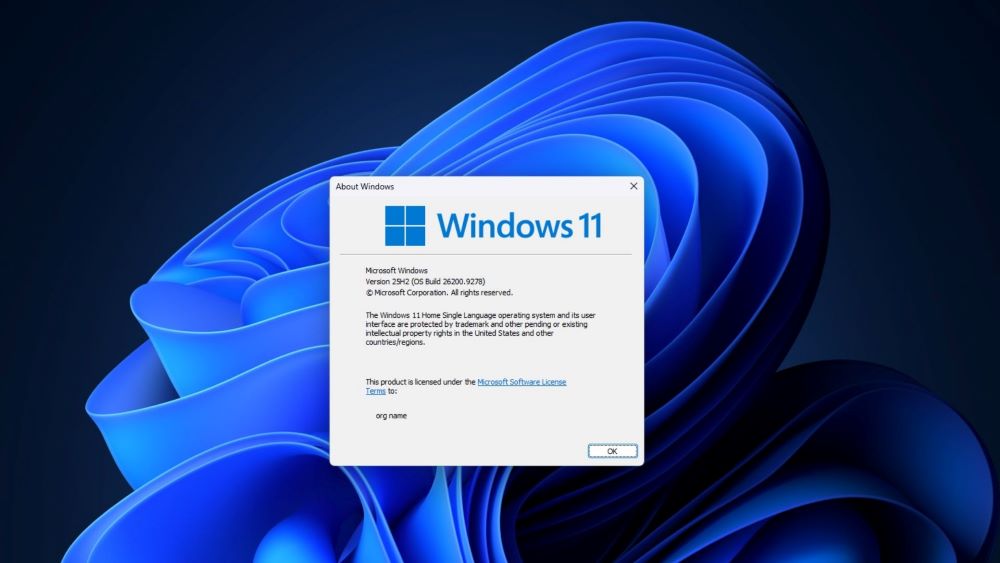
A1. The update package KB5120998 advances Windows 11 24H2 to build 26100.9278 and 25H2 to build 26200.9278.
Q2. How do I disable Bing search results on Windows 11?
A2. Open Settings, navigate to Privacy and Security, select Search, and turn off the toggle for web results.
Q3. Is the KB5120998 update required for all Windows 11 PCs?
A3. No, it is an optional preview release. The included search improvements will arrive on all machines automatically during the regular monthly patch rollout.
Q4. Will turning off web search make Windows 11 Search faster?
A4. Yes, disabling web results stops the search box from waiting on online Bing servers, which speeds up results for local files and apps.