Working with digital files often involves sharing multiple documents, photos, or large data sets. Sending these individually can be cumbersome and time-consuming. This is where zipping files comes in handy! Zipping, also known as compressing, allows you to combine multiple files and folders into a single, smaller package, making them easier to store, share, and transfer. Conversely, unzipping files extracts the original contents from a compressed archive.
Windows has built-in capabilities to handle .zip files, meaning you don’t need to install any third-party software for basic compression and extraction. This guide will walk you through the straightforward process of zipping and unzipping files on Windows 10 and Windows 11.
What are Zip Files?
A zip file is a compressed archive format that serves two main purposes:
- Compression: It reduces the overall size of the files and folders within it, saving disk space and reducing transfer times.
- Archiving: It bundles multiple files and folders into a single, convenient package. Imagine putting several documents into a single envelope—that’s what a zip file does digitally.
Zip files are widely used and supported across various operating systems, making them an excellent choice for sharing data.
How to Zip Files on Windows
Creating a zip file (compressing) is incredibly simple using Windows’ native features.
Method 1: Zipping Files/Folders Using the Send To Menu (Windows 10 & 11)
This is perhaps the quickest way to create a zip archive.
Step-by-Step Guide:
- Locate the file(s) or folder(s): Open File Explorer and navigate to the location where your files or folders are stored.
- Select what you want to zip:
- Single file or folder: Click on it once to select.
- Multiple files/folders (contiguous): Click the first item, then hold down the Shift key and click the last item to select everything in between.
- Multiple files/folders (non-contiguous): Hold down the Ctrl key and click each individual item you want to include in the zip file.
- Right-click on any of the selected files or folders.
- From the context menu:
- Windows 11: Select “Compress to ZIP file.”
- Windows 10: Hover over “Send to,” then select “Compressed (zipped) folder.”
- A new .zip file will be created in the same location as your original files/folders. It will have the same name as the first selected item (or the folder if you zipped a single folder), with a .zip extension.
- You can rename this new zip file immediately by typing a new name and pressing Enter.
Method 2: Zipping Files/Folders Using the Ribbon/Command Bar (Windows 10 & 11)
This method uses the options available in File Explorer’s top menu.
Step-by-Step Guide (Windows 11):
- Locate and select the file(s) or folder(s) you want to zip in File Explorer.
- On the command bar at the top, click the “…” (See more) icon.
- From the dropdown menu, select “Compress to ZIP file.”
- A new zip file will be created in the same location.
Step-by-Step Guide (Windows 10):
- Locate and select the file(s) or folder(s) you want to zip in File Explorer.
- Click on the “Share” tab in the File Explorer ribbon at the top.
- Click the “Zip” button within the “Share” tab.
- A new zip file will be created in the same location.
- Personal Insight: I often use the “Send to > Compressed (zipped) folder” method when quickly bundling photos to email to family. It’s so intuitive, it almost feels like magic how effortlessly it creates the archive.
How to Unzip Files on Windows
Once you receive a zip file or locate one on your system, unzipping it (extracting its contents) is just as simple.
Method 1: Unzipping Files Using “Extract All” (Windows 10 & 11)
This is the standard and recommended way to extract the contents of a zip file.
Step-by-Step Guide:
- Locate the zip file: Open File Explorer and navigate to where the .zip file is stored.
- Right-click on the zip file.
- From the context menu, select “Extract All…”.
- Windows 11: You might see a dedicated “Extract All” button on the command bar when the zip file is selected.
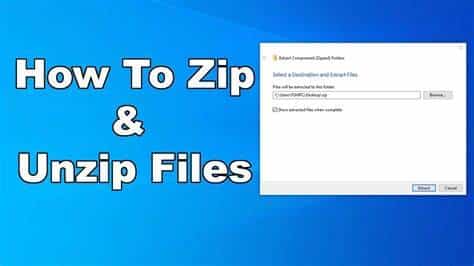
- An “Extract Compressed (Zipped) Folders” dialog box will appear.
- Choose a destination:
- By default, it will suggest creating a new folder with the same name as the zip file in the same location.
- You can click “Browse…” to select a different destination folder if you prefer.
- Ensure the “Show extracted files when complete” box is checked if you want the new folder to open automatically after extraction.
- Click “Extract.”
- A new folder containing all the original files and folders will appear in your chosen destination.
Method 2: Unzipping Files by Drag and Drop (Quick but Less Controlled)
You can also quickly extract individual files or folders from a zip archive by dragging them out.
Step-by-Step Guide:
- Locate the zip file and double-click it to open it in File Explorer. It will appear as if it’s a regular folder.
- You will see the contents of the zip file listed.
- Drag and drop the desired files or folders from the opened zip file window to any other location on your computer (e.g., your desktop, another folder).
- The selected items will be extracted to the new location.
- Consideration: While this method is fast, it doesn’t create a dedicated folder for the extracted contents, which can lead to clutter if you’re extracting many items into an existing directory. “Extract All” (Method 1) is generally more organized.
Method 3: Opening Files Directly from a Zip File (Temporary Access)
You don’t always need to fully unzip a file to view its contents. Windows allows you to “peek” inside.
Step-by-Step Guide:
- Double-click on the zip file to open it in File Explorer.
- You can then double-click on any file within the zip archive to open it with its default application (e.g., a Word document will open in Word, an image in Photos).
- Important Note: If you edit a file opened directly from a zip archive, you will likely be prompted to save it outside of the zip file. Changes made this way are not saved within the zip archive itself unless you re-zip it.
Common Zip/Unzip Issues and Tips
- Corrupted Zip File: If you receive an error when trying to open or extract a zip file, it might be corrupted. This can happen during download or transfer. Try re-downloading or requesting the file again.
- Password-Protected Zips: Some zip files are password-protected. Windows’ built-in tools can handle these, but you’ll need the correct password provided by the sender.
- Other Archive Formats: While Windows natively handles .zip files, you might encounter other formats like .rar, .7z, or .tar.gz. For these, you’ll need a third-party compression tool like 7-Zip or WinRAR. These free utilities offer more advanced compression options and support a wider range of formats.
- Disk Space: Ensure you have enough free disk space in the destination folder to accommodate the unzipped files, as they will be larger than the compressed zip file.
Mastering how to zip and unzip files on Windows is a fundamental skill that enhances your ability to manage, share, and organize your digital data efficiently. With these simple steps, you’re ready to compress and extract files like a pro!