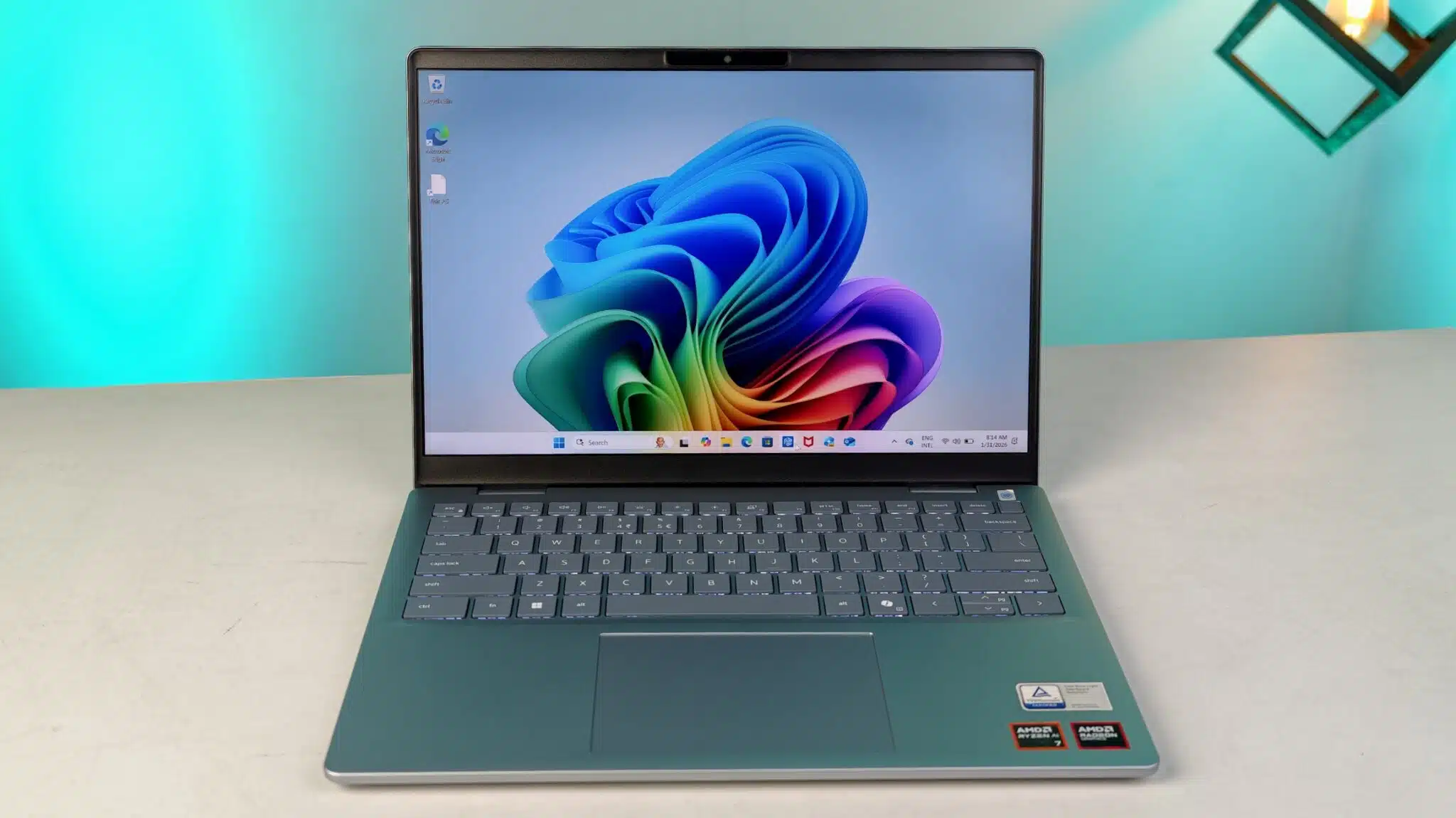

Leaving your Windows laptop unlocked, even for a moment, can pose a significant data security risk, especially in shared workspaces, public areas, or even at home with curious family members. Anyone could access your sensitive information, view private communications, or simply mess with your work. Manually pressing Win + L every time you step away is a good habit, but it’s easy to forget.
Fortunately, your Windows laptop offers several ways to automatically lock itself when you step away, providing peace of mind and enhancing your security posture. This guide will explore the most effective built-in and third-party solutions to ensure your digital workspace is always protected.
Method 1: Using Dynamic Lock (Windows 10 & 11)
Dynamic Lock is a convenient built-in Windows feature that uses Bluetooth to pair your laptop with your mobile phone. When your phone (and thus, you) moves out of Bluetooth range, your laptop will automatically lock after approximately one minute.
Part A: Pair Your Phone via Bluetooth
- Enable Bluetooth on both your laptop and your phone.
- On your Windows Laptop:
- Go to Settings (Windows Key + I).
- Click Bluetooth & devices (Windows 11) or Devices > Bluetooth & other devices (Windows 10).
- Ensure Bluetooth is toggled On.
- Click “Add device” or “Add Bluetooth or other device” > Bluetooth.
- Select your mobile phone from the list of discoverable devices.
- Follow the on-screen prompts on both your laptop and phone to complete the pairing process (e.g., confirm a PIN). Your phone should appear as “Paired.”
Part B: Enable Dynamic Lock
- On your Windows Laptop:
- Go to Settings (Windows Key + I).
- Click Accounts.
- In the left-hand menu, click Sign-in options.
- Scroll down to the “Dynamic Lock” section.
- Check the box next to “Allow Windows to automatically lock your device when you’re away.”
- Windows will then display a message confirming that Dynamic Lock is working with your paired phone.
How it works: Now, when you walk away from your laptop with your paired phone, and the Bluetooth connection drops for about 30 seconds to 1 minute, your laptop screen will automatically lock.
Method 2: Setting an Inactivity Timeout (Screen Saver or Power & Sleep)
This method ensures your laptop locks after a set period of user inactivity. While not proximity-based, it’s a fundamental security measure.
Part A: Using Screen Saver Settings (Windows 10 & 11)
- Open Screen Saver Settings:
- Click the Start button or Search icon.
- Type “Change screen saver” and click on the result.
- Configure Lock on Resume:
- In the “Screen Saver Settings” dialog box:
- Choose a screen saver from the dropdown menu (even “Blank” works).
- Set the “Wait” time to your desired inactivity period (e.g., 5 minutes). This is how long your PC will be idle before the screen saver activates.
- Crucially, check the box next to “On resume, display logon screen.” This ensures your PC locks when the screen saver kicks in.
- Click Apply, then OK.
- In the “Screen Saver Settings” dialog box:
Part B: Using Power & Sleep Settings with Auto-Lock (Windows 10 & 11)
This method ensures your laptop locks when the display turns off or it goes to sleep.
- Open Power & Sleep Settings:
- Go to Settings (Windows Key + I).
- Click System > Power & sleep (Windows 10) or Power & battery > Screen and sleep (Windows 11).
- Set Screen Off Time:
- Under “Screen” (Windows 11) or “Screen and sleep” (Windows 10), set the time after which your display turns off when plugged in and/or on battery (e.g., 5 minutes).
- Configure Lock:
- Go to Settings > Accounts > Sign-in options.
- Under the “Require sign-in” section, from the dropdown menu, select “When PC wakes up from sleep” (Windows 11) or “When PC has been off for” (Windows 10). Choose “When PC wakes up from sleep” or “Every time” for immediate lock.
Method 3: Using Group Policy Editor (Windows Pro/Enterprise/Education)
For users with Windows 10/11 Pro, Enterprise, or Education editions, the Group Policy Editor offers more granular control over auto-locking behavior.
- Open Group Policy Editor:
- Press Windows Key + R, type gpedit.msc, and press Enter.
- Navigate to Interactive Logon Policy:
- In the Group Policy Editor, navigate to: Computer Configuration > Windows Settings > Security Settings > Local Policies > Security Options
- Configure “Interactive logon: Machine inactivity limit”:
- Double-click on “Interactive logon: Machine inactivity limit.”
- Enable the policy and set the number of seconds for inactivity before the screen automatically locks (e.g., 300 seconds for 5 minutes).
- Click Apply, then OK.
- Configure “Interactive logon: Display user information when the session is locked”:
- For better privacy, you might want to also adjust this setting. Double-click it and choose “User display name, domain and user name” or “User display name only” for less information on the lock screen.
- Restart your PC for changes to take effect.
Method 4: Using Local Security Policy Editor (Windows Pro/Enterprise/Education)
Similar to Group Policy Editor, but focuses on local security settings.
- Open Local Security Policy Editor:
- Press Windows Key + R, type secpol.msc, and press Enter.
- Navigate to Security Options:
- In the Local Security Policy window, navigate to: Local Policies > Security Options
- Configure “Interactive logon: Machine inactivity limit”:
- Find and double-click “Interactive logon: Machine inactivity limit.”
- Set the desired inactivity time in seconds (e.g., 300 for 5 minutes).
- Click Apply, then OK.
- Restart your PC for changes to take effect.
Method 5: Third-Party Software (Advanced Solutions)
For more sophisticated automatic locking based on presence detection (e.g., via webcam) or more advanced triggers, third-party software can be an option.
- PresenceLight: An open-source tool that can integrate with Microsoft Teams or other presence services and change your device’s lighting, but some versions may offer locking features.
- Actual Keylogger (or similar privacy software): Some comprehensive security suites or keyloggers include advanced inactivity-based locking or screen-capture on lockout features. Use these with caution and only from trusted sources.
- Custom Scripts/Tools: Advanced users might create custom scripting solutions that utilize webcam presence detection or other sensors, but this requires significant technical expertise.
By implementing one or more of these methods, you can ensure your Windows laptop automatically locks itself when you step away, significantly bolstering your data security and providing peace of mind.
Frequently Asked Questions (FAQ)
Q1: What is Dynamic Lock, and how does it work?
Dynamic Lock is a Windows 10 and Windows 11 feature that automatically locks your Windows laptop when you move away from it. It works by monitoring the Bluetooth connection between your laptop and a paired mobile phone. When your phone goes out of Bluetooth range (typically about 10-20 meters) for a set period (around 30 seconds to 1 minute), Windows automatically locks the laptop screen, requiring your password, PIN, or biometric to unlock.
Q2: Is Dynamic Lock reliable? What if my phone battery dies or Bluetooth is off?
Dynamic Lock is generally reliable under normal circumstances, but it has limitations. If your phone’s Bluetooth is off, its battery dies, or the Bluetooth connection becomes unstable, Dynamic Lock won’t function. It’s always recommended to use it in conjunction with an inactivity timeout (like a screen saver with “On resume, display logon screen” enabled) as a fallback for comprehensive automatic lock security.
Q3: What’s the difference between “sleep” and “lock” on a Windows laptop?
- Locking (Win + L): Keeps your user session active but prevents unauthorized access by requiring your password/PIN/biometric to regain control. All programs continue running in the background.
- Sleep: Puts your laptop into a low-power state, saving your work to RAM and allowing for a quick resume. It also typically locks the screen, but the key difference is power consumption and resource management. An automatic lock setup ensures security without necessarily putting the computer to sleep.
Q4: Can I use these automatic lock features on Windows Home editions?
Yes, Dynamic Lock and setting an inactivity timeout via Screen Saver settings or Power & Sleep settings are available on all editions of Windows 10 and Windows 11, including Home. The Group Policy Editor and Local Security Policy Editor methods (Methods 3 and 4 in the article) are typically only available on Professional, Enterprise, and Education editions of Windows.
Q5: What if I have multiple users on my laptop? Does automatic lock affect them?
Automatic lock settings are generally applied per user profile or system-wide, depending on the method.
- Dynamic Lock is set up for a specific user account and its paired phone.
- Screen Saver settings are typically user-specific.
- Power & Sleep settings for screen off and lock on resume are system-wide but apply when any user is logged in and inactive.
- Group Policy and Local Security Policy settings apply system-wide to all users on the computer, making them powerful for shared environments.