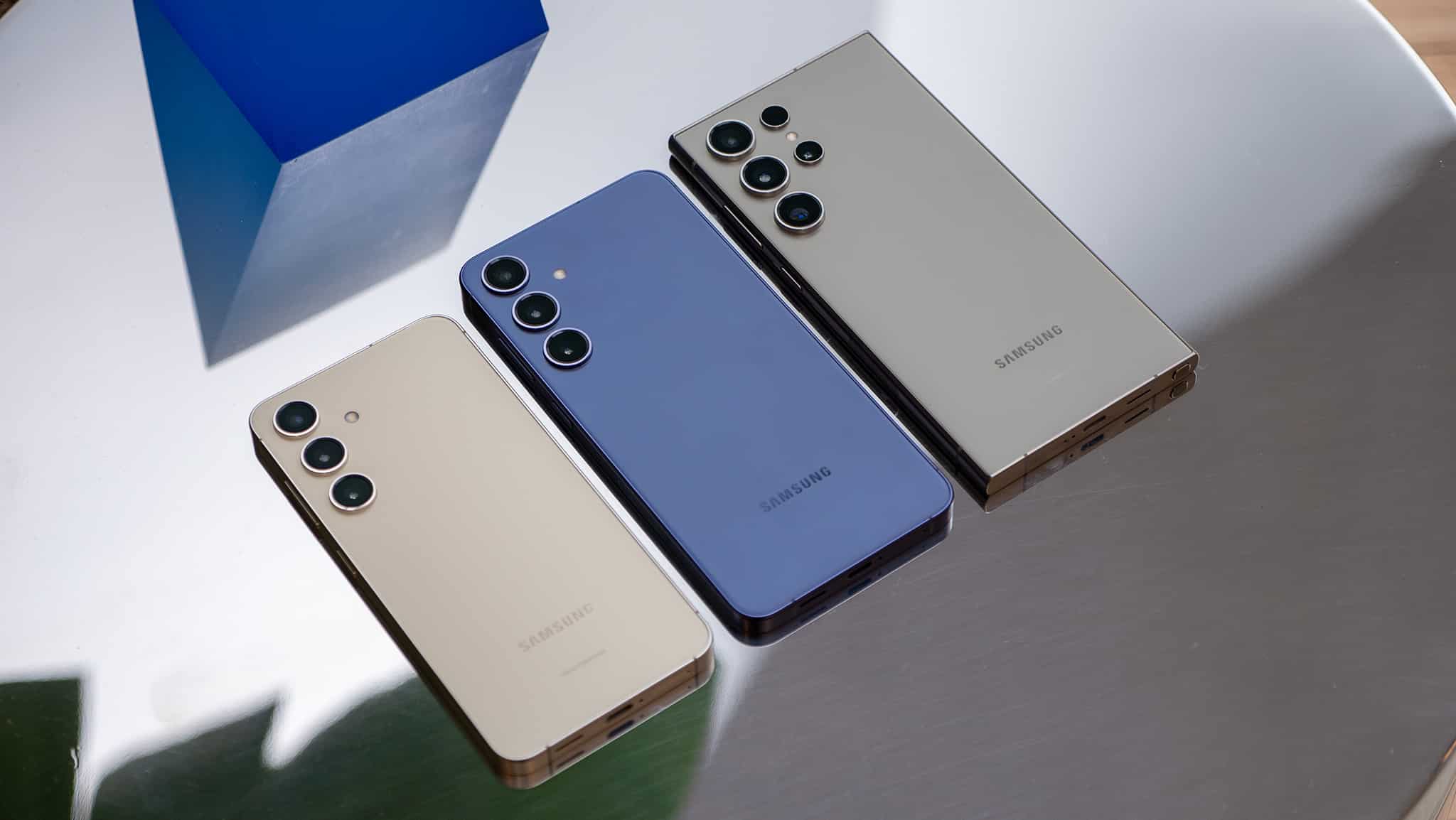


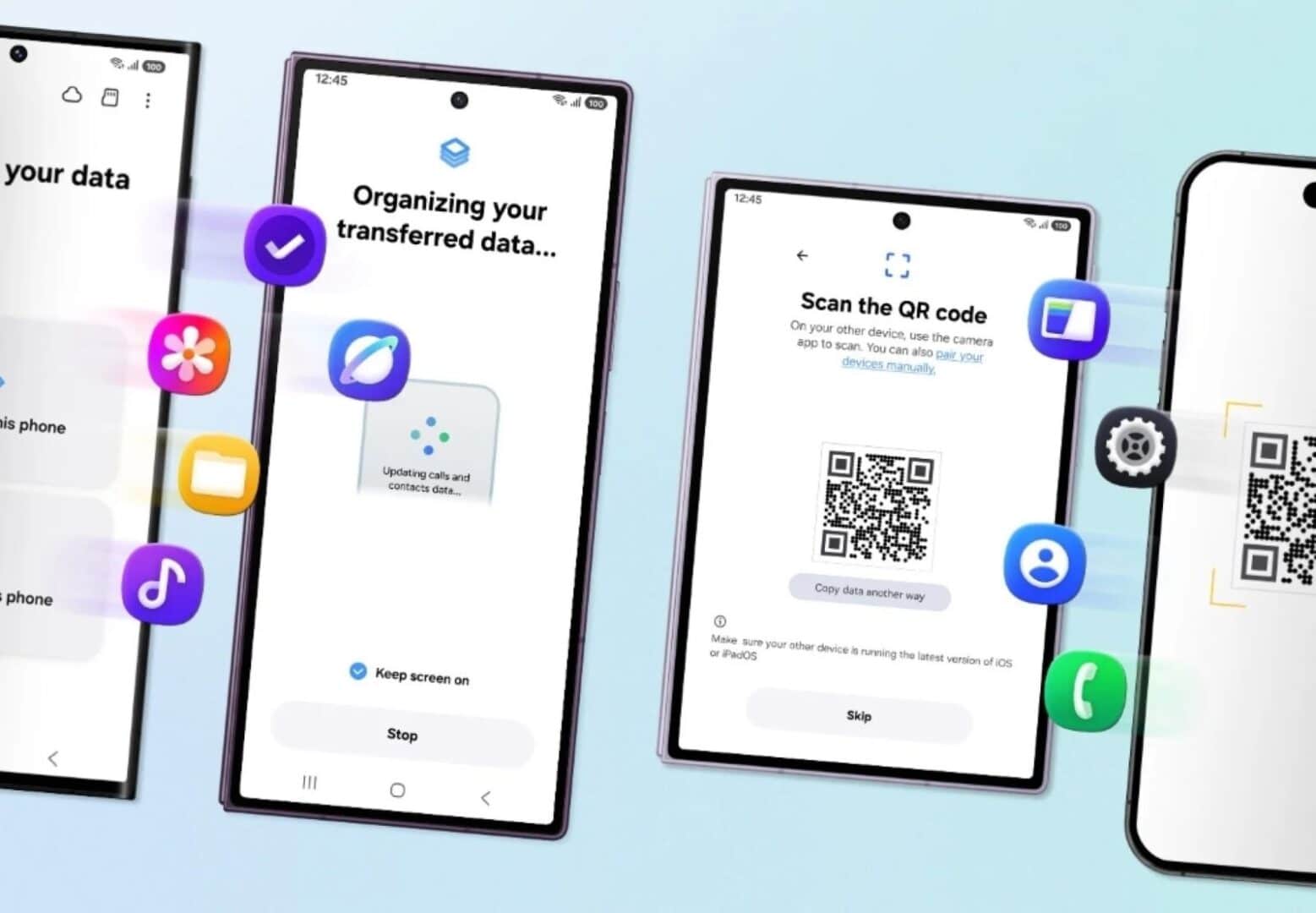
Samsung Electronics rolled out an updated version of its Smart Switch data transfer tool inside One UI 9, allowing Apple iPhone users to migrate apps, saved logins, and personal files directly to the Galaxy Z Fold8. The new setup removes the requirement to install a companion app on iOS devices by letting users connect both phones through a quick camera scan.
Key Takeaways
- One UI 9 allows direct migration from iOS without downloading Smart Switch from the Apple App Store.
- The updated tool moves app data, passwords, passkeys, eSIM profiles, and call history.
- Users can transfer everything wirelessly or use a USB Type-C cable for faster speeds.
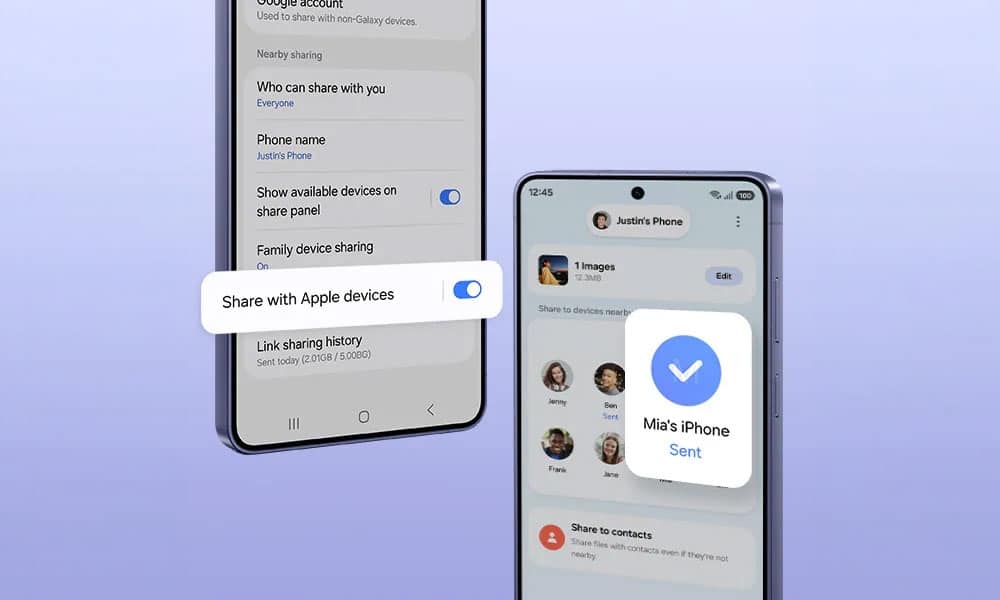
Six Steps to Transfer iPhone App Data to Galaxy Z Fold8
Step 1. Power on the Galaxy Z Fold8 and Select Transfer
Turn on your new Galaxy Z Fold8 and begin the initial setup process. When the screen prompts you to bring data from another phone, select the iPhone or iPad option.
Step 2. Scan the Onscreen QR Code with Your iPhone
A dedicated QR code will appear on the display of your Galaxy Z Fold8. Open the default Camera app on your iPhone, point it at the screen, and tap the prompt to establish a direct local connection without installing extra software.
Step 3. Choose Wireless or Cable Connection
Keep both devices near each other on the same Wi-Fi network for a wireless sync, or connect them directly using a USB Type-C to Lightning or Type-C to Type-C cable to move large media libraries faster.
Step 4. Select Apps and Custom Data Categories
Select the specific items you want to copy across. The list includes apps, photos, videos, contacts, messages, passwords, passkeys, accessibility preferences, and eSIM details.
Step 5. Grant Permissions on the iPhone
Unlock your iPhone and tap Trust or Allow when the security pop-up appears to authorize the transfer of your app list and account details.
Step 6. Complete Setup and Download Matching Android Apps
Keep both handsets active until the transfer bar reaches completion. The Galaxy Z Fold8 will organize your files and automatically queue matching Android versions of your iOS apps from the Google Play Store or Galaxy Store.
Frequently Asked Questions
Q1. Do I need to install Smart Switch on my iPhone before starting?
A1. No. With One UI 9, you only need to scan the QR code shown on the Galaxy Z Fold8 with your iPhone camera to begin the transfer.
Q2. Will my paid iPhone apps automatically transfer to the Galaxy Z Fold8?
A2. The tool identifies your iOS apps and finds the matching Android versions. Free apps download automatically, while paid apps require purchase through the Google Play Store if they lack cross-platform account licensing.
Q3. Can I move my WhatsApp chats from iPhone to Galaxy Z Fold8 using this method?
A3. Yes. Smart Switch supports moving WhatsApp chat histories, media, and voice notes when you follow the onscreen verification prompt.
Q4. Does the transfer delete data from my old iPhone?
A4. No. The process only copies your files and settings, leaving your original iPhone data completely intact.