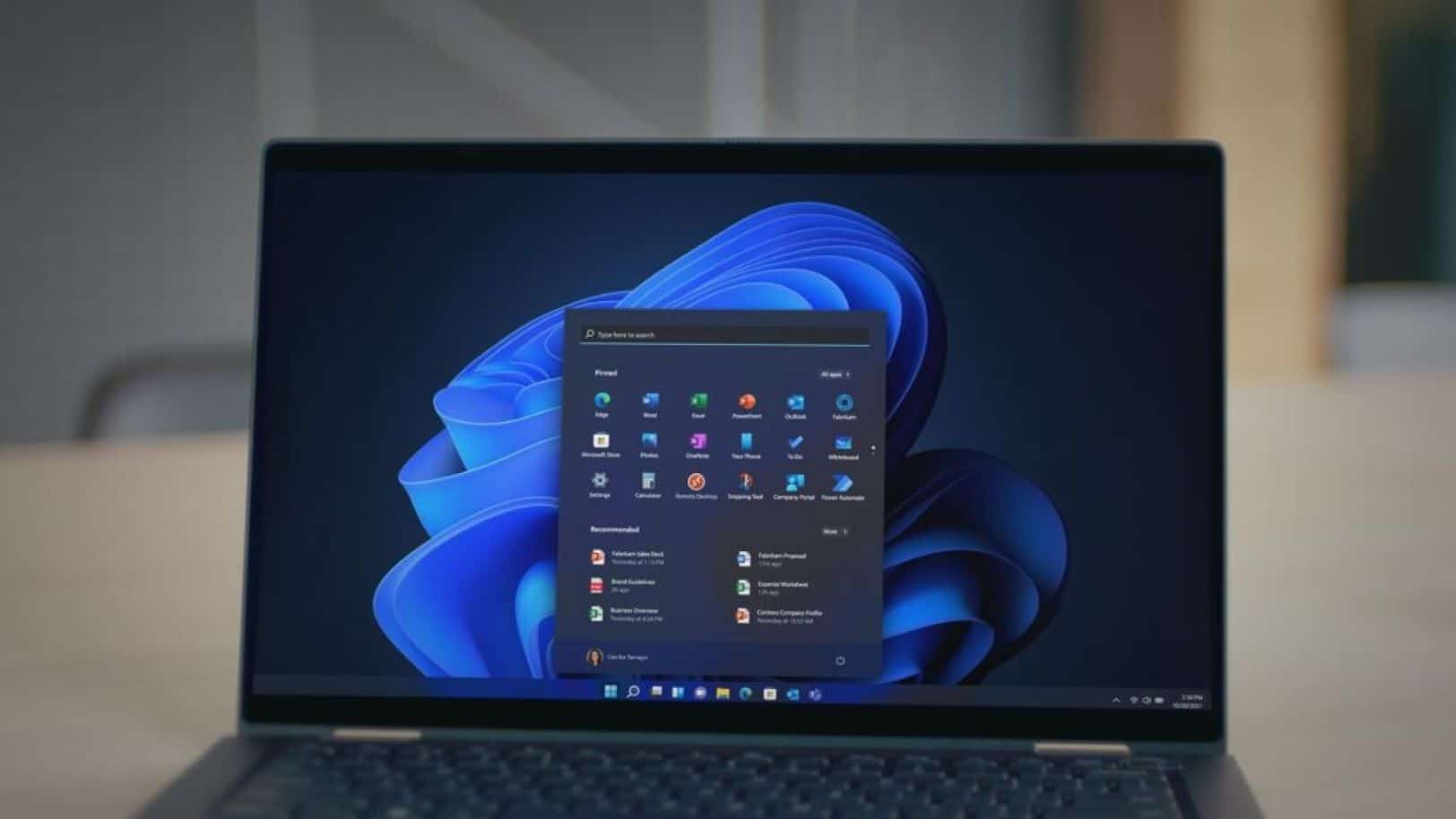
Microsoft has rolled out the Windows 11 cumulative update KB5060829, delivering a substantial update with 38 new changes and fixes. This update aims to improve system stability, address various reported issues, and enhance the overall user experience for Windows 11 users. Available through Windows Update, KB5060829 tackles problems ranging from display glitches to network issues and performance slowdowns.
- Key Takeaways
- Addressing Display and Visual Issues
- Enhancements to System Performance and Stability
- Network and Connectivity Fixes
- Addressing User Interface and Experience Quirks
- Printer and Peripheral Device Compatibility
- Security and Reliability Patches
- How to Get the Update
- Community Feedback and Expected Impact
- FAQs
Key Takeaways
- KB5060829 is a cumulative update for Windows 11.
- The update introduces 38 fixes and changes across different areas.
- It focuses on improving system stability, user experience, and performance.
- Fixes cover display, networking, and UI quirks.
- Available via Windows Update for all users.
Addressing Display and Visual Issues
One of the standout areas in KB5060829 is its focus on display-related problems. Many users reported issues with monitor flickering, particularly after certain driver updates or when using multiple displays. This update addresses those concerns by stabilizing the display output, which is especially important for those using their PCs for graphic-intensive tasks or long working hours where screen stability is crucial.
Additionally, the update resolves issues where some applications might display incorrect color profiles or show visual artifacts. This fix is particularly valuable for users working with photo editing software or media players, where color accuracy is essential. If you’ve been struggling with your monitor not waking up from sleep or displaying a black screen after inactivity, this update should provide much-needed relief, as specific fixes have been included for these scenarios.
Enhancements to System Performance and Stability
Beyond visuals, KB5060829 delivers improvements aimed at boosting system performance and stability. A common gripe among early adopters of Windows 11 was occasional freezes or unresponsiveness, especially during heavy usage. The update brings optimizations to memory management and CPU scheduling, leading to a smoother, more responsive experience. Expect faster application launches, smoother multitasking, and fewer unexpected system halts.
Another performance fix focuses on NVMe SSDs, where some users experienced degraded write speeds over time. While this issue wasn’t widespread, it impacted users with high-performance storage. The patch restores optimal write speeds, ensuring these SSDs operate as they should. If you’ve noticed slow boot times or sluggish app launches, these optimizations should result in noticeable improvements in daily use.
Network and Connectivity Fixes
Wi-Fi and network stability are essential in today’s connected world, and KB5060829 brings important fixes to Windows 11’s networking stack. One critical change addresses intermittent Wi-Fi drops or slower-than-expected wireless speeds—issues that frustrated many laptop users. The update includes improved Wi-Fi driver handling and better network adapter management, ensuring more reliable and consistent wireless connections.
Additionally, VPN users will appreciate a fix aimed at improving connection stability. Some users reported difficulties with VPN connections, affecting secure access to remote networks. The update enhances the compatibility and stability of VPN protocols, providing a smoother experience for remote workers. There are also fixes for Ethernet adapter recognition, resolving cases where wired connections weren’t detected correctly after a restart.
Addressing User Interface and Experience Quirks
While the redesigned user interface in Windows 11 has generally been praised, a few quirks have surfaced. KB5060829 addresses several of these, aiming to refine the overall user experience. One fix resolves an issue where the Taskbar could become unresponsive or display incorrect icons. Though a minor issue, this could disrupt workflows for some users, so the update ensures the Taskbar operates reliably.
Another fix improves the Start Menu search functionality. Some users noticed slow or inaccurate search results, particularly when searching for local files or settings. This update boosts the search indexing service, making search results faster and more accurate. There are also tweaks to context menus and right-click options, making sure they appear as expected across various apps and file types. These changes aim to make daily interactions with Windows 11 more seamless and predictable.
Printer and Peripheral Device Compatibility
Peripheral compatibility issues are often addressed in operating system updates, and KB5060829 is no different. One fix improves USB printer detection and driver stability, especially after a system sleep or restart. If you’ve struggled with printing errors or undetected printers, this update should resolve those frustrations.
In addition to printers, Bluetooth device support has been improved. Some users experienced intermittent disconnections or pairing issues with Bluetooth devices like headsets or input devices. The update enhances Bluetooth connectivity, providing a more stable experience for those who rely on wireless peripherals.
Security and Reliability Patches
While the main focus of KB5060829 is functional improvements, it also includes important security and reliability patches. These updates address vulnerabilities that could be exploited, enhancing Windows 11’s security. Regular updates like this help protect against emerging threats and ensure the operating system remains resilient against malicious attacks.
KB5060829 also tackles various crash-related issues that might have caused unexpected reboots or app failures. By addressing these underlying instabilities, the update makes Windows 11 more reliable, reducing the risk of data loss or workflow disruptions.
How to Get the Update
KB5060829 is available through Windows Update. To install it, head to Settings > Windows Update and click “Check for updates.” While these updates are generally rolled out in phases, you should be able to get it soon if it’s not available immediately. It’s always a good idea to install cumulative updates promptly, as they bring important fixes and security enhancements.
Before you install any update, it’s a good idea to back up important data, though cumulative updates typically install smoothly. After installation, a system restart is required for the changes to take effect.
Community Feedback and Expected Impact
So far, community feedback around KB5060829 has been largely positive. Many users report improvements in areas directly targeted by the update, such as display flickering and Wi-Fi stability. On platforms like Reddit, Microsoft support forums, and X (formerly Twitter), users have noted a faster, more responsive system post-update, thanks to the performance tweaks.
As with any update, a few users may encounter issues specific to their hardware or software setups. But given the comprehensive nature of this update—addressing 38 distinct changes—it seems Microsoft is responding effectively to user feedback. This update is a significant step forward in the ongoing refinement of Windows 11, making the OS more stable, performant, and user-friendly.
FAQs
Q: What is Windows 11 KB5060829?
A: It’s a cumulative update for Windows 11, introducing 38 fixes aimed at improving system stability, performance, and addressing a range of bugs.
Q: How do I install the KB5060829 update?
A: Navigate to Settings > Windows Update, then click “Check for updates” to install the update.
Q: What kind of issues does KB5060829 fix?
A: It addresses display flickering, Wi-Fi problems, slow SSD performance, Taskbar issues, Start Menu search delays, and printer compatibility. It also includes important security and reliability patches.
Q: Is it safe to install Windows 11 cumulative updates?
A: Yes, installing cumulative updates is safe and recommended. These updates bring essential fixes, performance improvements, and security patches.
Q: Will installing KB5060829 affect my installed apps or files?
A: Cumulative updates are designed not to affect your apps or personal files, but it’s always a good practice to back up important data beforehand.
Q: Do I need to restart my computer after installing KB5060829?
A: Yes, a restart is typically required for the changes to take effect fully.
Q: What if I encounter problems after installing the update?
A: You can try troubleshooting with the Windows Update troubleshooter or uninstalling the update through Settings > Windows Update > Update history > Uninstall updates. You can also check Microsoft’s official support pages or community forums for more help.
Ask ChatGPT