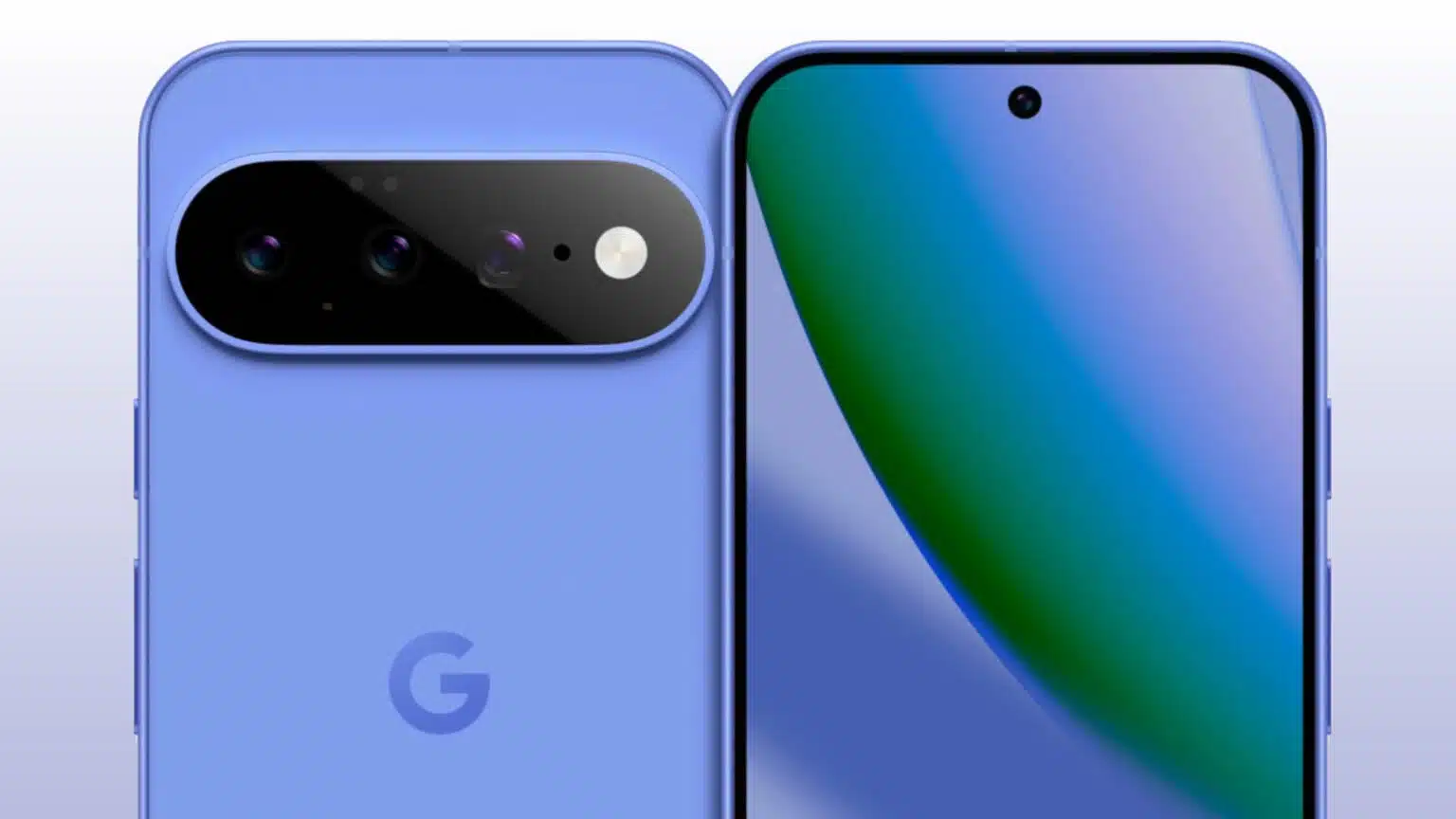
Google’s Pixel phones have long been celebrated for their camera capabilities, which are known for their mastery of computational photography. Initially focused on delivering impressive still photography, these phones have evolved to offer a complete suite of tools that help users capture expert-level photos and videos effortlessly. This shift isn’t just due to better hardware; it’s the deep integration of artificial intelligence and advanced software that truly empowers users, turning even the most complicated photographic techniques into something anyone can achieve.
- Key Takeaways
- The Foundation: Computational Photography and Google Tensor
- Mastering Low-Light and Night Sky Photography
- Precision Editing: Refine Your Shots with On-Device AI
- Magic Eraser
- Photo Unblur
- Best Take
- Realistic Representation: Real Tone
- Elevating Video Quality
- Video Boost and Night Sight Video
- Cinematic Blur and Cinematic Pan
- Audio Magic Eraser
- Empowering Users with “Camera Education”
- FAQ
Key Takeaways
- Pixel phones utilize computational photography, powered by the Google Tensor chip, to enhance image and video quality.
- Features like Night Sight and Astrophotography allow for exceptional low-light and night sky captures.
- Advanced editing tools such as Magic Eraser, Photo Unblur, and Best Take provide precise control over images.
- Real Tone ensures accurate and authentic representation of all skin tones in photos and videos.
- Video capabilities are boosted with features like Cinematic Blur, Cinematic Pan, and Audio Magic Eraser.
- The new “Camera Education” mode helps users understand and fully utilize their Pixel camera’s potential.
The Foundation: Computational Photography and Google Tensor
The true strength of the Pixel camera lies in its use of computational photography. This is where the power of the Google Tensor chip comes into play, helping the phone handle complex digital processes that enhance photos as they’re taken. Unlike traditional cameras that rely solely on optics, Pixel phones capture multiple frames in quick succession and then use advanced software to combine them into a single, enhanced image. This process addresses common challenges like poor lighting, motion blur, and dynamic range, ultimately transforming even the most ordinary shot into something closer to professional quality.
For example, when you press the shutter button, your Pixel phone might snap a burst of images, some overexposed, some underexposed, and some just right. The Tensor chip then takes these frames, aligns them, reduces noise, sharpens details, and ensures balanced exposure. All of this happens nearly instantly, often without the user even realizing how much computational power is at work behind the scenes.
Mastering Low-Light and Night Sky Photography
One of the standout features of the Pixel camera is Night Sight, which allows users to take vibrant, clear photos even in extremely low-light conditions. Where other phones might leave you with grainy, dark images, Night Sight works by taking a series of long exposures and intelligently merging them to brighten the scene and reduce noise. The result? A surprisingly bright and detailed photo, even in near darkness.
Astrophotography mode, available on the Pixel 4a (5G) and later models, builds on Night Sight’s capabilities and takes night photography to a whole new level. This specialized mode allows users to capture images of the night sky, from stars to constellations and even faint nebulae. To use it, all you need is a dark location, a stable surface (like a tripod), and a little patience. Once the phone detects that it’s stationary and aimed at the sky, it enters Astrophotography mode, capturing long-exposure shots and stitching them together to create a breathtaking final image. It’s a game-changer for amateur astronomers and anyone interested in capturing the beauty of the night sky.
Precision Editing: Refine Your Shots with On-Device AI
Beyond taking great photos, Pixel phones provide a suite of powerful editing tools that let users refine their images with surprising precision. These tools rely on the Tensor chip for quick processing, working directly within Google Photos.
Magic Eraser
Magic Eraser is one of the most talked-about features. It allows you to remove unwanted elements from your photos with ease. Whether it’s a power line in a landscape shot or an uninvited stranger in your family photo, Magic Eraser lets you simply circle the object you want to remove, and the AI takes care of the rest. It seamlessly reconstructs the background, making the distraction disappear. For more subtle adjustments, the “Camouflage” option can help blend an object into the background by adjusting its color and brightness. It’s a clever feature that shows off Google’s AI capabilities, offering quick, effective solutions for post-capture editing.
Photo Unblur
Motion blur or camera shake can ruin what would otherwise be a perfect shot. This is where Photo Unblur comes in. This feature can analyze blurry images and apply AI algorithms to sharpen faces, objects, and details. It’s particularly handy for spontaneous shots or photos taken in less-than-ideal conditions. Available on Pixel 7 and later models, Photo Unblur can even fix older photos you’ve imported into Google Photos, no matter which device they were originally taken with.
Best Take
Group photos are often tricky—getting everyone to look their best, eyes open, smiling at the right moment, can be a real challenge. Best Take makes this process easier. When you take a series of similar shots, Best Take analyzes each one and lets you pick the best expression for each person. It then merges these choices into a single, flawless group photo, saving you from retakes or the hassle of manual editing.
Realistic Representation: Real Tone
One area where camera technology has historically fallen short is accurately representing diverse skin tones. Google has addressed this with Real Tone, a set of enhancements in Pixel’s computational photography algorithms that ensures all skin tones are captured accurately, from the lightest to the darkest.
Real Tone isn’t just about making skin look good in photos; it’s about ensuring that people of color are represented authentically and vibrantly. It involves improvements in face detection, white balance, exposure control, and sharpening, particularly in low-light situations. This initiative reflects a broader commitment to inclusivity, ensuring that everyone looks true to life in both photos and videos.
Elevating Video Quality
While Pixel phones are best known for their still photography, their video capabilities have also seen significant advancements, bringing cinematic-quality footage to your fingertips.
Video Boost and Night Sight Video
On the Pixel 8 Pro, Video Boost automatically adjusts color, lighting, and stabilization, ensuring your videos look polished, even in challenging lighting. In fact, Pixel’s Night Sight video mode allows for high-quality, bright footage even in low-light environments, so you can capture important moments without worrying about lighting.
Cinematic Blur and Cinematic Pan
Pixel’s Cinematic Blur mode gives your videos a professional touch by blurring the background behind your subject, creating that desirable shallow depth-of-field effect. It’s similar to what you’d get with high-end cameras, making your subject stand out. Meanwhile, Cinematic Pan smooths out camera movements, providing ultra-smooth tracking shots, even if you’re holding the phone by hand. The combination of advanced image stabilization and AI helps create film-like motion, adding a polished look to your videos.
Audio Magic Eraser
Just like Magic Eraser clears unwanted visual distractions, Audio Magic Eraser, available on the Pixel 8 and later, helps reduce or remove unwanted sounds from your videos. Whether it’s wind noise, background chatter, or street sounds, this feature allows you to isolate and enhance the sounds you want, giving you precise control over your video’s audio.
Empowering Users with “Camera Education”
Google recognizes that not everyone is aware of the full potential of their Pixel phone’s camera. To help users take full advantage of its capabilities, Google has introduced “Camera Education” mode. This interactive feature, accessible via a “?” button in the Pixel Camera app, provides detailed explanations and step-by-step guides for using different camera modes like Panorama, Macro Focus, and Pro Mode. It’s designed to help you explore settings like ISO and shutter speed in Pro Mode and learn how to apply them in real-world situations. With Camera Education, even beginners can quickly get the hang of advanced techniques, unlocking the potential for professional-level photos.
The continuous development of Pixel’s camera technology showcases Google’s ongoing commitment to pushing the boundaries of mobile photography. Each new generation brings a more powerful Tensor chip and even more sophisticated AI algorithms, ensuring that Pixel phones stay at the cutting edge. Whether you’re a casual photographer or someone looking to take your video skills to the next level, Pixel phones offer an intuitive, powerful platform for capturing and creating stunning visuals with ease.
FAQ
Q1: What is computational photography and how does it make Pixel photos look so good?
A1: Computational photography involves using digital processing and algorithms, often powered by AI, to enhance images beyond what traditional lenses can achieve. On Pixel phones, the Google Tensor chip combines multiple exposures, reduces noise, and sharpens details to produce a high-quality image, especially in low-light conditions.
Q2: How do I use Astrophotography mode on my Pixel phone?
A2: To use Astrophotography mode, head to a dark location away from city lights. Open the Camera app, select Night Sight, and mount your Pixel on a stable surface like a tripod. When the phone detects that it’s stationary and aimed at the sky, it will automatically switch to Astrophotography mode. Then, just tap the shutter button and wait while the phone captures long-exposure shots.
Q3: Can Magic Eraser remove people from my photos even if they are in the foreground?
A3: Magic Eraser can remove people and other distractions from your photos, but it works best when the object is clearly distinguishable from the background. While it can remove people in the foreground, its effectiveness may depend on the complexity of the background.
Q4: Is Photo Unblur only for new photos taken on a Pixel 7 or 8?
A4: No, Photo Unblur can work on older photos as well. If you import a blurry photo into Google Photos on a Pixel 7 or later model, you can use the Photo Unblur tool to sharpen the image, regardless of when or where the photo was taken.
Q5: What is Real Tone and why is it important for Pixel cameras?
A5: Real Tone is a set of enhancements that ensure accurate representation of all skin tones in photos and videos. It’s important because it addresses the historical bias in camera technology, ensuring people of all backgrounds are represented authentically and vibrantly.
Q6: How does Audio Magic Eraser work for videos?
A6: Audio Magic Eraser analyzes and isolates different sounds in your video, allowing you to reduce or remove unwanted noises such as wind or background chatter. It gives you full control over the audio, enabling you to emphasize the sounds you want to keep and eliminate distractions.