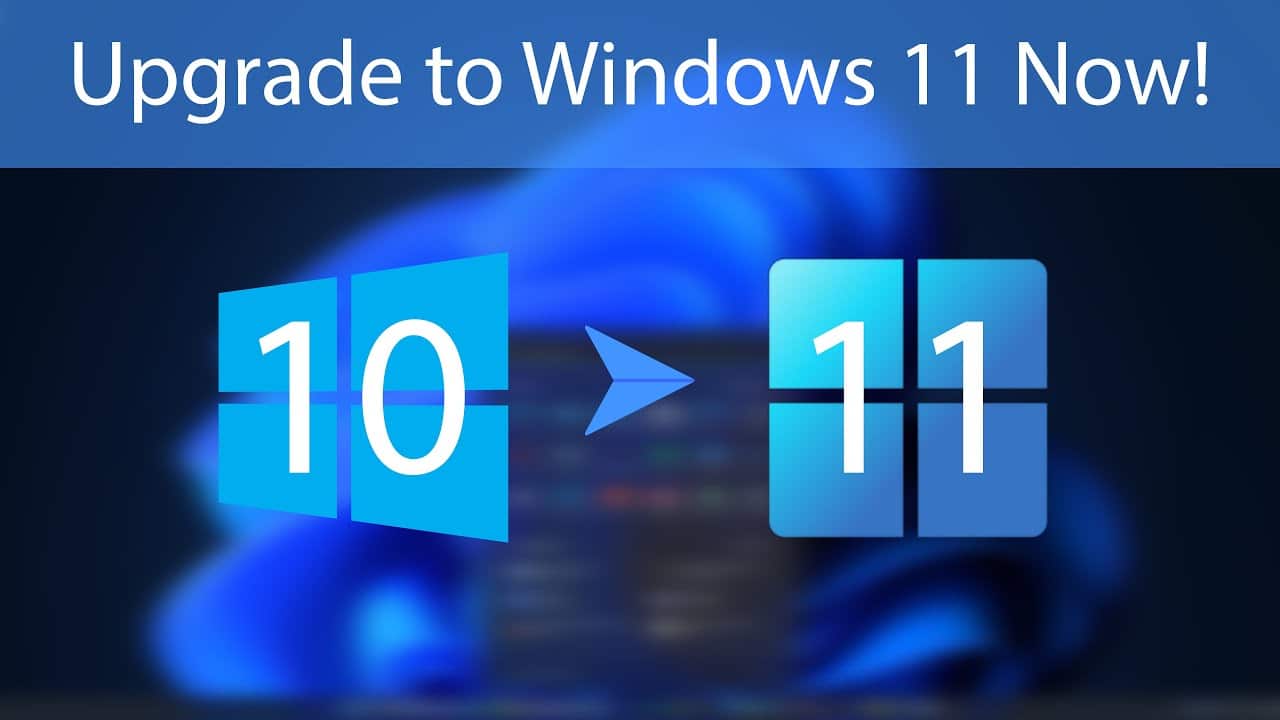
Upgrading from Windows 10 to Windows 11 is available for free to eligible users, and the process is smoother than you might expect. Microsoft officially released Windows 11 in October 2021, and it’s designed to bring a more modern user interface, enhanced productivity tools, and improved gaming and security features. I’ve personally upgraded several machines and helped others do the same, and in this article, I’ll guide you step-by-step through how to upgrade to Windows 11 for free—while keeping your files, apps, and settings intact.
- Who Can Upgrade to Windows 11 for Free?
- Step 1: Check If Your PC Is Eligible for Windows 11
- Step 2: Back Up Your Data (Optional but Recommended)
- Step 3: Install Windows Updates on Windows 10
- Step 4: Use Windows Update to Upgrade (If Offered)
- Step 5: Upgrade Manually Using the Installation Assistant
- Step 6: Upgrade Using an ISO File (Optional Advanced Method)
- What Happens After the Upgrade?
- Optional: Clean Up After Installation
- Rolling Back to Windows 10 (If Needed)
- Troubleshooting Tips
- Final Thoughts
Who Can Upgrade to Windows 11 for Free?
Before beginning, it’s important to confirm whether your device meets the system requirements for Windows 11. Microsoft has been strict with hardware compatibility, especially regarding TPM 2.0 and newer processors.
Minimum system requirements:
- Processor: 1GHz or faster with at least 2 cores on a compatible 64-bit processor or SoC
- RAM: 4GB or more
- Storage: 64GB minimum
- TPM: Trusted Platform Module (TPM) version 2.0
- UEFI: Secure Boot capable
- Graphics card: DirectX 12 compatible with WDDM 2.0 driver
- Display: >9” with 720p resolution
- Internet: Required for initial setup of Windows 11 Home
Step 1: Check If Your PC Is Eligible for Windows 11
Option 1: Use PC Health Check Tool
Microsoft provides a tool that checks compatibility.
- Go to the official Microsoft link
- Download and install the PC Health Check tool.
- Open the app and click Check now.
If your PC is eligible, you’ll see the message “This PC meets Windows 11 requirements.”
If not, the tool will provide a breakdown of what’s missing.
Step 2: Back Up Your Data (Optional but Recommended)
While upgrading keeps your files and apps intact, it’s a good idea to back up your data just in case something goes wrong.
You can:
- Use OneDrive for cloud backup.
- Copy files to an external hard drive or USB stick.
- Create a system image using Windows Backup.
Personally, I use an external SSD to keep a full copy of my important files before any major upgrade.
Step 3: Install Windows Updates on Windows 10
Make sure your current Windows 10 is up to date. This ensures a smoother upgrade process.
To update:
- Go to Settings > Update & Security > Windows Update.
- Click Check for updates.
- Install any pending updates and restart your computer.
Step 4: Use Windows Update to Upgrade (If Offered)
If your PC is eligible, the upgrade might be offered directly in Windows Update.
To upgrade via Windows Update:
- Go to Settings > Update & Security > Windows Update.
- If your PC is compatible, you’ll see a Windows 11 upgrade notification.
- Click Download and install.
- Follow the on-screen instructions.
Your PC will restart several times. All your personal files and most apps will remain intact.
Step 5: Upgrade Manually Using the Installation Assistant
If you’re not seeing the upgrade in Windows Update, or if you want to upgrade right away, use the Windows 11 Installation Assistant.
Steps:
- Visit the official Microsoft upgrade page
- Download the Installation Assistant tool.
- Open the tool and click Accept and Install.
- The tool will verify compatibility and begin the upgrade.
- Once ready, your system will reboot into Windows 11 setup.
This is the method I’ve used on most PCs I’ve upgraded. It preserves your files and settings while applying the upgrade seamlessly.
Step 6: Upgrade Using an ISO File (Optional Advanced Method)
This method is useful if you want more control, or if you’re performing an offline installation.
Steps:
- Download the Windows 11 ISO from Microsoft’s official website.
- Right-click the ISO and choose Mount.
- Open the mounted drive and run Setup.exe.
- Choose Keep personal files and apps during setup.
- Follow the instructions to complete installation.
This method is great if you want to upgrade multiple PCs using a single file, especially in a business or IT environment.
What Happens After the Upgrade?
Once the upgrade completes:
- All your files and folders in C:\Users[YourUsername] are retained.
- Installed programs and settings remain untouched.
- You’ll see the new Windows 11 Start menu, rounded corners, and updated taskbar.
- Your Windows activation carries over if you had a genuine Windows 10 license.
To check activation:
- Go to Settings > System > Activation.
- It should say Windows is activated with a digital license.
Optional: Clean Up After Installation
After upgrading, you might want to free up disk space by removing old Windows files.
To clean up:
- Open Settings > System > Storage.
- Click Temporary files.
- Select Previous Windows installation(s) and other large files you don’t need.
- Click Remove files.
Note: You won’t be able to roll back to Windows 10 after this step.
Rolling Back to Windows 10 (If Needed)
If you’re not satisfied with Windows 11, you can roll back within 10 days of upgrading.
Steps:
- Go to Settings > System > Recovery.
- Under Recovery options, click Go back.
- Follow the prompts.
Your files and apps will be restored as they were before the upgrade.
Troubleshooting Tips
Windows 11 upgrade not showing?
- Confirm hardware compatibility.
- Make sure TPM and Secure Boot are enabled in BIOS.
- Update drivers and Windows 10 to the latest version.
Installation stuck?
- Disconnect external devices (USB drives, printers).
- Disable antivirus temporarily.
- Use the ISO method for better reliability.
Final Thoughts
Upgrading from Windows 10 to Windows 11 for free is straightforward for most users, as long as your system meets the requirements. Microsoft offers multiple tools to help with the process, and in most cases, your files, apps, and settings will remain untouched.
I’ve upgraded many systems without a hitch, but I always advise backing up your data first and reviewing your hardware specs. With careful preparation and the right method, the transition to Windows 11 can be smooth and rewarding.