

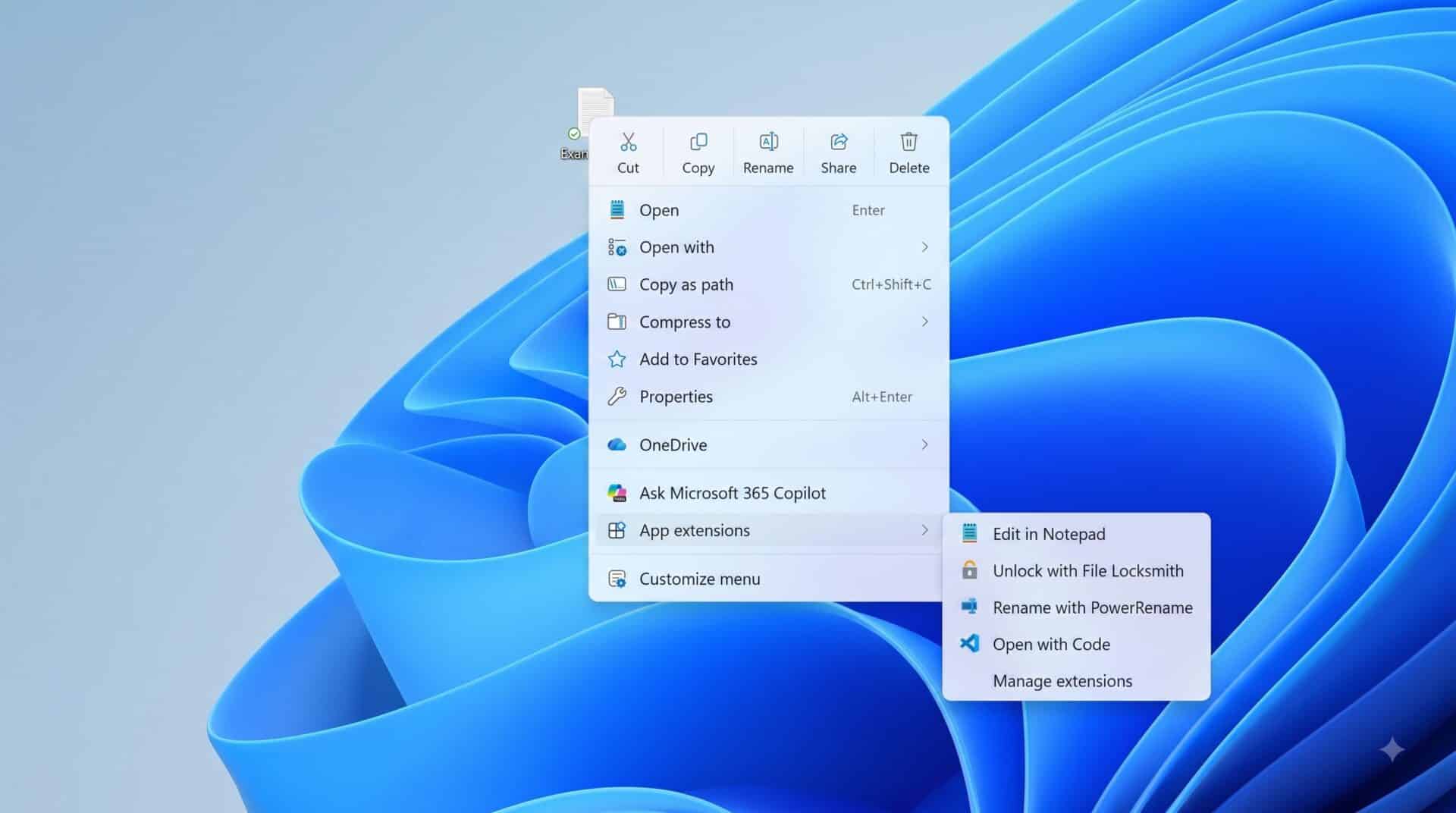
Microsoft has begun rolling out an updated File Explorer and context menu experience to Windows Insiders, targeting long-standing user complaints regarding sluggish right-click menus and software freezes. The Windows maker has introduced a cleaner default layout that loads faster, paired with a dedicated configuration hub within the Windows Settings app. The update aims to give users direct control over which commands and third-party app shortcuts appear on their screens.
Key Takeaways
- Right-click context menus now launch much faster due to a cleaner default layout and background code fixes.
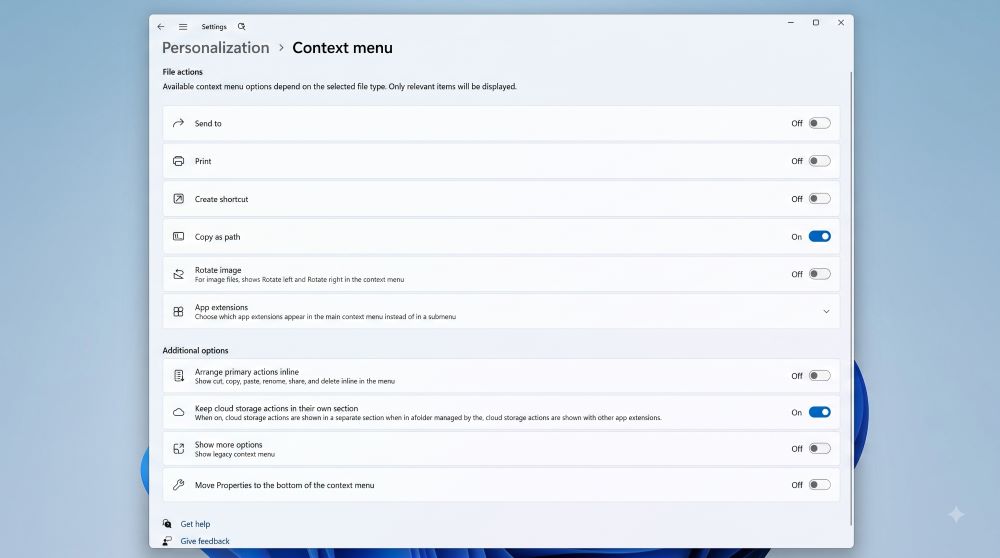
- A new Context Menu settings page under Personalization lets users toggle commands and app shortcuts.
- Users can restore the classic text-based command layout for actions like Cut, Copy, Rename, and Delete.
- File Explorer gains support for middle-clicking folders in the Address Bar to open new tabs.
- Background file synchronization no longer halts active file renaming.
Faster Loading and Less Clutter
The default right-click context menu in Windows 11 often suffered from delays because installed software added multiple entries to the main view. Microsoft has restructured the layout to reduce top-level clutter. Third-party applications now direct their options into a separate App extensions submenu by default, preventing external software from slowing down menu rendering.
Cloud storage options from services like OneDrive have also moved into their own dedicated submenus, freeing up top-level space for core tasks.
Dedicated Settings Page for User Control
At the bottom of the new context menu, users will find a “Customize menu” link. Clicking this option directs users to Settings > Personalization > Context Menu.
From this page, users can enable or disable default Windows actions such as Send to, Create shortcut, and Print. For users who prefer the traditional Windows 10 style, the settings menu includes an option to arrange primary actions inline. This replaces the compact horizontal row of icons with full text labels for Cut, Copy, Paste, Rename, Share, and Delete, while shifting the Properties option back to the bottom of the list.
General File Explorer Fixes
Beyond the right-click menu, Microsoft has resolved several common stability bugs in File Explorer. Background sync processes no longer freeze active file renames, and case-only changes to filenames update instantly.
Multitasking is also easier, as users can now middle-click folders in the Address Bar and Home page to open them in separate tabs. The Home section now remembers whether folders were expanded or collapsed during the previous session, and the Details pane has received a cleaner layout for reviewing file properties.
The update is currently available in preview builds for testing, with wider public availability expected in upcoming general releases.
Frequently Asked Questions
Q1. How do I get the new context menu in Windows 11?
A1. The feature is currently rolling out to Windows Insiders in the preview test channels. Microsoft will release it to all users in a future general Windows 11 system update.
Q2. Can I bring back text labels for Copy and Paste?
A2. Yes. In Settings > Personalization > Context Menu, you can choose to list primary actions inline as text commands instead of top icons.
Q3. Does the new update stop apps from cluttering my right-click menu?
A3. Yes. Third-party software commands now sit inside a dedicated App extensions submenu, and you can hide this submenu completely in Settings.