

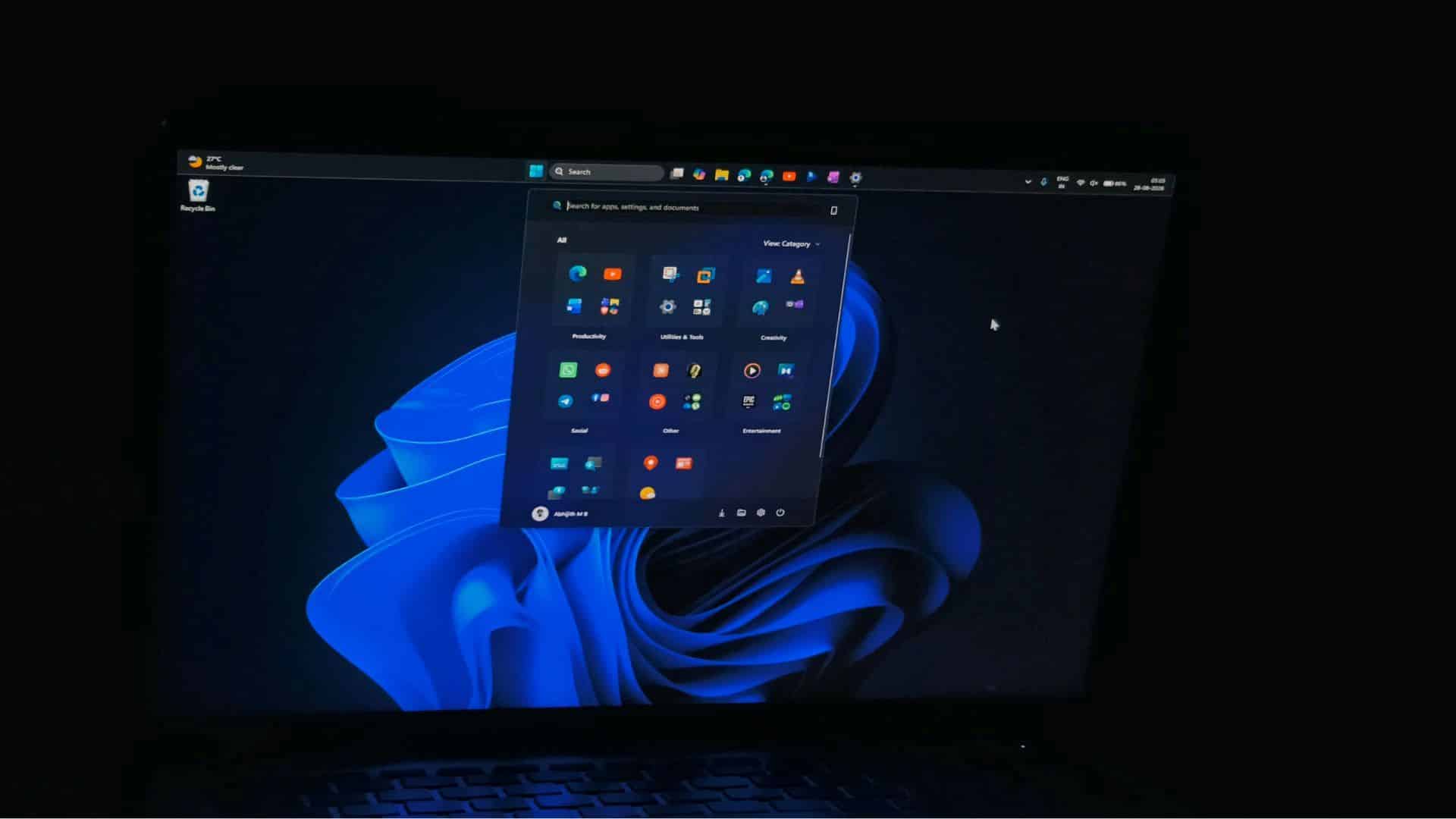
Microsoft rolled out an optional preview update, KB5120998, for Windows 11 versions 24H2 and 25H2, bringing back the movable taskbar alongside over 30 system fixes and interface changes. The update advances Windows 11 builds to 26100.9278 and 26200.9278, respectively, allowing users to place the taskbar on the top, left, right, or bottom of the screen. Because this is a non-security preview release, Microsoft aims to test these features ahead of the mandatory monthly Patch Tuesday release.
Key Takeaways
- Users can now move the taskbar to the top, bottom, left, or right edges of the screen.
- A new compact taskbar mode shrinks icon size and bar height to free up display space.
- The Start menu introduces small and large layout options, while renaming Recommended items to Recent.
- Windows Search lets users turn off Bing web suggestions and Microsoft Store results.
- File Explorer Home tab launches faster and system tray icons load with less delay.
- The update removes the legacy Windows Management Instrumentation Command-line (WMIC) tool.
Movable Taskbar and Start Menu Flexibility
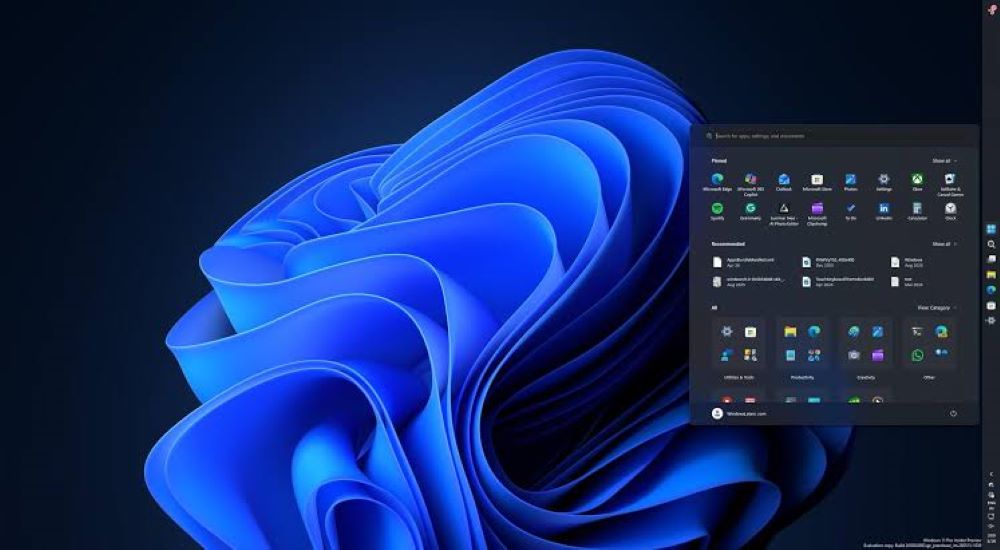
The most requested change in KB5120998 brings back full taskbar placement options. Users can head to Settings, navigate to Personalization, open Taskbar, and adjust Taskbar position to pin the bar to any side of the display. Tooltips, flyout menus, and animations adjust according to the chosen screen edge. Microsoft also added a smaller taskbar setting for compact laptops and monitors, reducing icon heights while keeping system tray tools accessible.
The Start menu received several layout adjustments. Users can switch between Small and Large view modes instead of relying solely on the automatic default. The previous Recommended list is now labeled Recent to better reflect opened files and apps. For privacy during presentations or livestreams, users can toggle off their account name and profile picture from the main panel.
Search Upgrades and Faster File Explorer
Windows Search received a cleanup to help users find local files without web clutter. The Settings menu under Privacy and Security now lets users turn off web results from Bing as well as Microsoft Store suggestions. Search results now display clear visual tags indicating whether an item is an app, a local document, or a system setting. Windows also automatically indexes frequently opened folders in the background to speed up file queries.
Performance fixes target daily navigation. The File Explorer Home tab opens quicker, system tray icons appear faster on boot, and touch scrolling in file lists operates smoothly. Microsoft also patched background VPN dropouts, improved restart behavior after sleep mode, and introduced Administrator Protection to run administrative tasks with temporary credentials.
How to Install the Update
Users running Windows 11 24H2 or 25H2 can install KB5120998 manually:
- Open Windows Settings and click on Windows Update.
- Click Check for Updates.
- Locate the KB5120998 entry under Optional Updates and click Download and install.
- Restart the computer once the installation finishes.
The update is also available as an offline installer file directly from the official Microsoft Update Catalog.
Frequently Asked Questions
Q1. Is the Windows 11 KB5120998 update mandatory?
A1. No, KB5120998 is an optional non-security preview update. You only need to install it if you want early access to the new taskbar placement and Start menu settings before the upcoming monthly update.
Q2. How do I move the taskbar to the top or sides in Windows 11?
A2. After installing the update, open Settings, select Personalization, choose Taskbar, expand Taskbar behaviors, and pick your preferred screen side under Taskbar position.
Q3. Can I turn off Bing web results in Windows 11 Search with this update?
A3. Yes, you can disable Bing web suggestions and Microsoft Store results in Settings under Privacy and Security to display only local files and installed apps.
Q4. Will all these features show up immediately after I install KB5120998?
A4. Microsoft uses phased rollouts for certain interface features, so some options like the resizable Start menu may activate gradually on eligible PCs over several days.