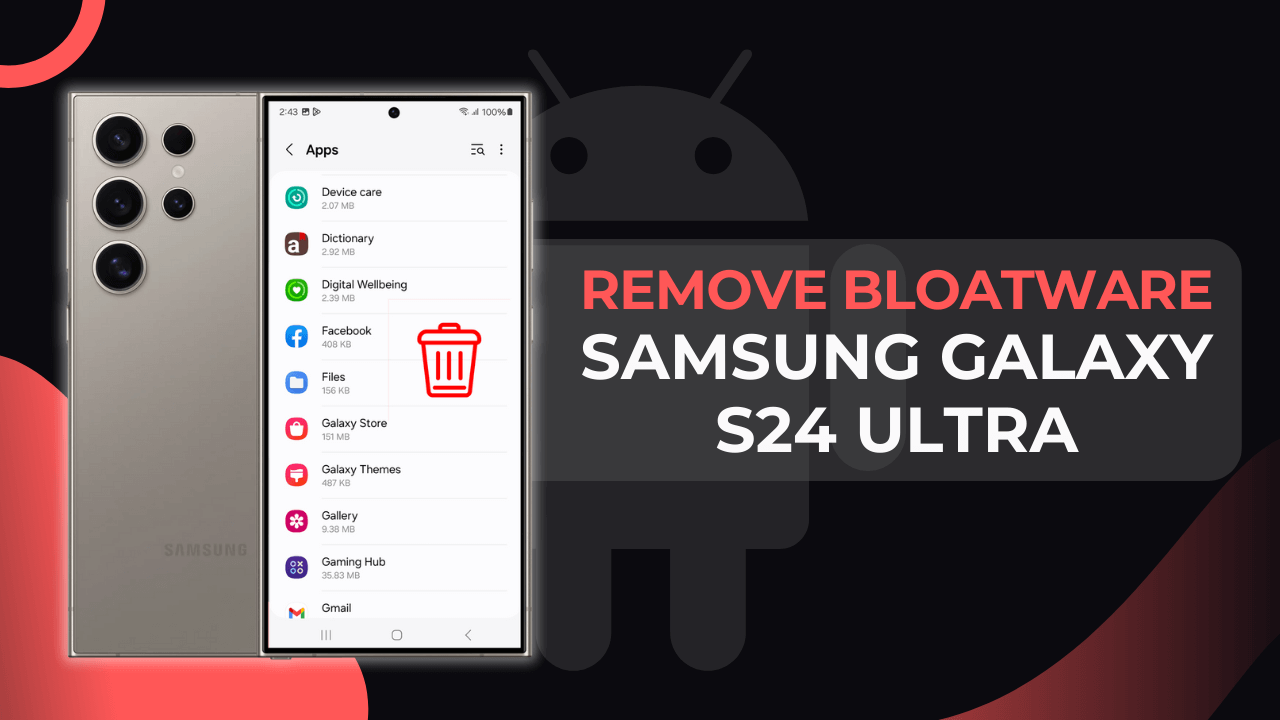
Samsung Galaxy smartphones come loaded with many pre-installed apps known as bloatware. These apps can consume storage, slow down your device, and clutter your home screen. While some bloatware is necessary for system functions, most users prefer to remove or disable unnecessary apps to optimize their phone’s performance. This detailed guide explains how to safely remove bloatware from your Samsung Galaxy, covering various methods without risking your device’s stability.
What Is Bloatware and Why Remove It?
Bloatware refers to apps pre-installed by the manufacturer, carrier, or third-party providers that you may not need or use. These apps:
- Consume storage space and memory.
- Run background processes that reduce battery life.
- Can send unwanted notifications.
- Add clutter to your app drawer and home screen.
Removing or disabling bloatware can improve device speed and user experience.
Important Considerations Before Removing Bloatware
- Some system apps are essential for Samsung’s features and removing them can cause instability.
- Avoid uninstalling apps critical for system operation or security.
- Disabling apps is safer than uninstalling for system apps.
- Backup your data before making significant changes.
- Rooting your phone unlocks more removal options but risks warranty and device security. This guide focuses on non-root methods.
Step 1: Disable or Uninstall Bloatware via Settings
Samsung allows you to disable or uninstall some pre-installed apps directly.
How to Disable/Uninstall Apps
- Open Settings.
- Go to Apps or Applications.
- Scroll through the list to find unwanted apps.
- Tap on the app.
- If Uninstall is available, tap to remove the app.
- If not, tap Disable to prevent it from running and hide it from the app drawer.
- Confirm any warnings.
Note: Disabling frees up RAM and stops background processes but keeps the app installed for safety.
Step 2: Remove Apps Using Samsung’s Galaxy Store or Google Play Store
Some Samsung apps installed via the Galaxy Store or Google Play Store can be uninstalled like normal apps.
- Open the app store.
- Search for the app.
- Tap Uninstall if available.
This is useful for apps updated separately from system firmware.
Step 3: Use ADB Commands to Uninstall Bloatware Without Root
If you want to remove more stubborn apps without rooting, Android Debug Bridge (ADB) allows uninstalling bloatware safely via a PC.
What You Need
- A PC with ADB installed.
- USB cable.
- Enable Developer options and USB debugging on your Samsung Galaxy:
- Go to Settings > About phone > Software information.
- Tap Build number 7 times to enable Developer options.
- Go back to Settings > Developer options and enable USB debugging.
Steps to Remove Bloatware via ADB
- Connect your phone to PC via USB.
- Open Command Prompt (Windows) or Terminal (Mac/Linux).
- Verify connection: adb devices
- List installed apps: adb shell pm list packages
- Identify the package name of the bloatware.
- Remove the app temporarily: adb shell pm uninstall –user 0 <package_name>
This removes the app for the current user without deleting it from the system partition, so it can be restored by resetting the device.
Step 4: Use Safe Third-Party Apps for Bloatware Removal
Some apps on the Play Store help disable or hide bloatware safely without root.
Examples include:
- Package Disabler Pro (mostly for Samsung devices).
- BK Package Disabler.
These apps require certain permissions and sometimes ADB setup but simplify the process.
Step 5: Manage Background Apps and Notifications
Disabling apps isn’t always enough. Manage background processes and notifications:
- Go to Settings > Apps > [App] > Battery and restrict background activity.
- Turn off notifications in Settings > Notifications.
This reduces the impact of bloatware on performance and distractions.
Step 6: Regularly Update and Restart Your Device
Keeping your Samsung Galaxy updated ensures better management of apps and system optimization.
- Install software updates via Settings > Software update.
- Restart your phone periodically to refresh system resources.
My Experience Removing Bloatware on Samsung Galaxy
I used the built-in disable option for many pre-installed apps to prevent them from running unnecessarily. For stubborn apps, ADB removal was effective and safe without rooting. Restricting background activity improved battery life noticeably. Disabling rather than uninstalling avoided accidental issues. The combination of these methods gave me better control and improved phone performance.
Summary
To safely remove bloatware from Samsung Galaxy:
- Disable or uninstall apps via Settings > Apps.
- Remove apps installed via app stores normally.
- Use ADB commands for deeper removal without rooting.
- Use trusted third-party disabling apps if needed.
- Manage background activity and notifications.
- Keep your device updated and restart regularly.
This balanced approach optimizes your Samsung Galaxy without risking device stability.