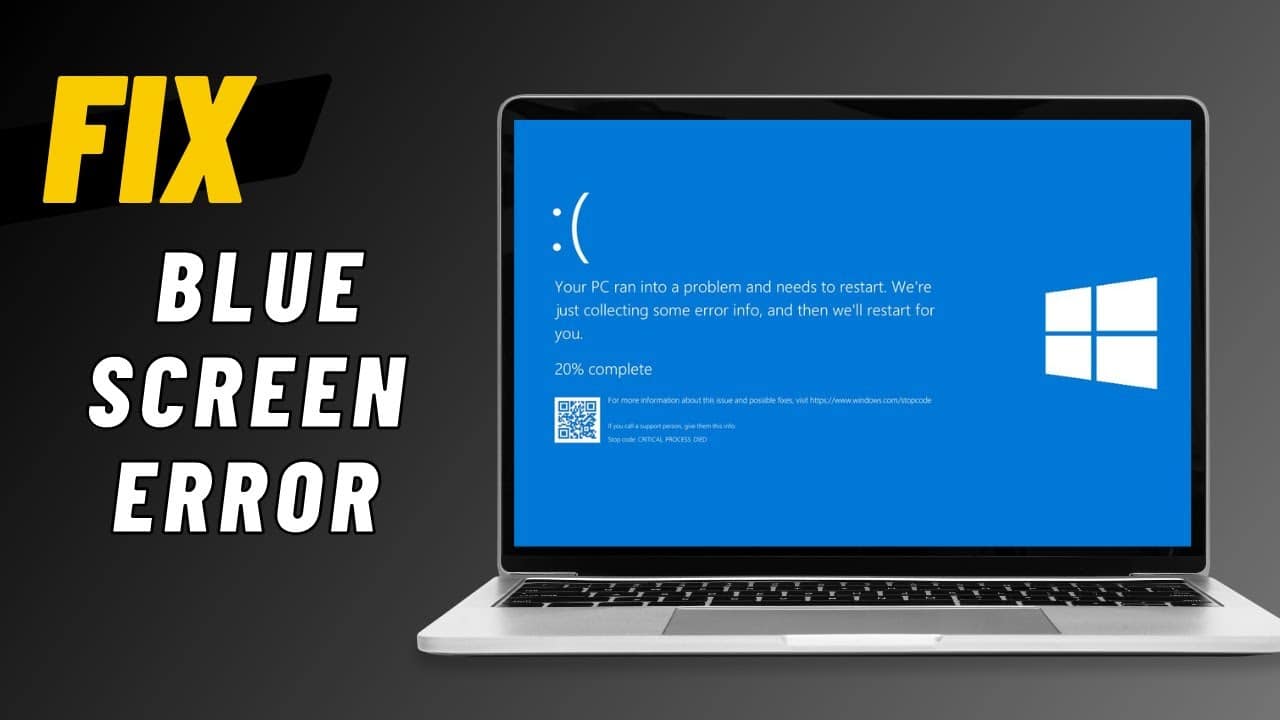
The Blue Screen of Death (BSOD), also known as a Stop Error, is one of the most unsettling sights for any Windows user. It signifies a critical system error that Windows cannot recover from, forcing your computer to shut down or restart to prevent further damage. While intimidating, a BSOD often provides clues about the underlying problem. Learning how to fix Blue Screen of Death on Windows involves a systematic approach to identify the cause and apply the appropriate solution, ranging from driver updates to hardware troubleshooting.
Understanding the Blue Screen of Death
A BSOD is a full-screen error message with a blue background (hence the name), typically showing a sad emoticon, a brief error message, and a Stop Code. This Stop Code (e.g., KERNEL_MODE_TRAP, MEMORY_MANAGEMENT, DRIVER_IRQL_NOT_LESS_OR_EQUAL) is your primary clue.
Common Causes of BSODs:
- Driver Issues: Incompatible, corrupted, or outdated device drivers are a very frequent cause.
- RAM (Memory) Problems: Faulty or improperly seated RAM modules.
- Hardware Failures: Issues with hard drives, GPUs, CPUs, or other components.
- Software Conflicts: Conflicts between recently installed programs or corrupted system files.
- Overheating: Excessive temperatures can lead to system instability and crashes.
- Malware: Malicious software can corrupt system files and cause BSODs.
- Power Supply Issues: An inadequate or failing power supply.
Step-by-Step Guide: How to Fix Blue Screen of Death on Windows
Fixing a BSOD requires a methodical approach, moving from the simplest and most common solutions to more complex hardware diagnostics.
Step 1: Note the Stop Code and Error Message
When a BSOD occurs, the first thing to do is write down the Stop Code (e.g., 0x00000133, 0x000000D1) and any accompanying error message (e.g., DPC_WATCHDOG_VIOLATION). This code is your most important diagnostic tool. You can search for this specific code online (e.g., “DPC_WATCHDOG_VIOLATION fix Windows 10”) to find targeted solutions.
Step 2: Basic Troubleshooting (Common First Steps)
These simple steps can often resolve temporary or minor issues causing a BSOD.
- Restart Your PC: Sometimes, a BSOD is a one-off event caused by a temporary glitch. A simple restart can resolve it.
- Disconnect Non-Essential Peripherals: Unplug all external devices except for your keyboard and mouse (printers, external hard drives, webcams, USB hubs, etc.). A faulty peripheral or its driver can cause a BSOD.
- Boot into Safe Mode (If BSOD prevents normal boot): If your PC repeatedly crashes on startup, Safe Mode can help.
- Windows 10/11 Automatic Repair: If Windows fails to boot normally multiple times, it will automatically enter the Windows Recovery Environment (WinRE).
- From WinRE: Go to Troubleshoot > Advanced options > Startup Settings > Restart.
- After restart, press F4 or 4 for “Enable Safe Mode” or F5 or 5 for “Enable Safe Mode with Networking.”
- In Safe Mode, Windows loads with only essential drivers and services, making it easier to diagnose and fix problems without crashing.
Step 3: Update and Roll Back Drivers
Driver issues are a leading cause of BSODs.
- Update All Drivers:
- Graphics Drivers: Start with your GPU drivers (NVIDIA, AMD, Intel) as they are frequently updated and can cause instability if outdated. Download the latest drivers directly from the manufacturer’s website.
- Chipset Drivers: Your motherboard’s chipset drivers are critical. Download these from your motherboard manufacturer’s website (for custom PCs) or your laptop manufacturer’s support page (for laptops).
- Other Device Drivers: Update drivers for network adapters, audio devices, and any other peripherals you use frequently.
- How to Update:
- Open Device Manager (Win + X > Device Manager).
- Right-click on the device you want to update (e.g., Display adapters > your GPU).
- Select “Update driver” > “Search automatically for drivers.”
- However, for critical drivers like GPU and chipset, manually downloading from the manufacturer’s website is always preferred for the latest versions.
- Roll Back Recently Installed Drivers: If a BSOD started occurring after a recent driver update, the new driver might be incompatible.
- In Device Manager, right-click the problematic device.
- Select “Properties” > “Driver” tab > “Roll Back Driver.” This will revert to the previous version.
Step 4: Check for Windows Updates
Windows updates include bug fixes and driver updates that can resolve BSOD issues.
- Check for Updates: Go to Settings > Windows Update (Windows 11) or Settings > Update & Security > Windows Update (Windows 10).
- Install All Pending Updates: Install any available updates and restart your PC.
- Uninstall Recent Updates (If BSOD started after update): If the BSOD began immediately after a Windows update, the update itself might be the problem.
- Go to Settings > Windows Update > Update history > Uninstall updates (Windows 11).
- Go to Settings > Update & Security > View update history > Uninstall updates (Windows 10).
- Find the problematic update, right-click it, and select “Uninstall.”
Step 5: Run a Memory Diagnostic
Faulty RAM is a common cause of BSODs, especially those with “MEMORY_MANAGEMENT” or similar error codes.
- Launch Diagnostic:
- Type “Windows Memory Diagnostic” in the Windows search bar and select the tool.
- Choose “Restart now and check for problems (recommended).”
- Allow Test to Complete: Your PC will restart and run a thorough memory test. This can take a while.
- Interpret Results: After the test, Windows will reboot. Check the notification in the system tray or the Event Viewer (System log, search for “MemoryDiagnostic-Results”) for errors.
- Action on Errors: If errors are found, your RAM is likely faulty. If you have multiple RAM sticks, test them individually to find the culprit. Consider reseating the RAM sticks first, then replace any confirmed faulty modules.
Step 6: Check Disk for Errors
A corrupted hard drive or SSD can also lead to BSODs.
- Open Command Prompt as Administrator:
- Search for “cmd,” right-click “Command Prompt,” and select “Run as administrator.”
- Run CHKDSK: Type chkdsk /f /r and press Enter.
- Schedule Scan: You’ll likely be asked to schedule the disk check for the next restart. Type Y and press Enter.
- Reboot: Restart your computer. The disk check will run before Windows loads, attempting to find and fix bad sectors or file system errors.
Step 7: Perform a System File Checker (SFC) Scan
Corrupted Windows system files can cause various issues, including BSODs.
- Open Command Prompt as Administrator: (See Step 6)
- Run SFC Scan: Type sfc /scannow and press Enter.
- Allow Scan to Complete: This scan will check for and attempt to repair corrupted system files. It can take some time.
- Reboot (If Errors Found): If SFC finds and repairs errors, restart your PC.
Step 8: Check for Malware
Malware can deeply infect your system and lead to instability and BSODs.
- Run a Full Scan: Use your installed antivirus software to perform a full system scan.
- Use a Second Opinion Scanner: Consider a reputable free anti-malware scanner like Malwarebytes to catch anything your primary antivirus might miss.
- Remove Found Threats: Quarantine and remove any detected threats.
Step 9: Check for Overheating
Excessive heat can cause components to malfunction and lead to BSODs.
- Monitor Temperatures: Use tools like HWMonitor, HWInfo64, or your motherboard’s software to monitor CPU and GPU temperatures.
- Clean PC Internals: If temperatures are high, power off and unplug your PC. Open the case and use compressed air to clean dust from CPU coolers, GPU heatsinks, and case fans.
- Check Fan Functionality: Ensure all fans (CPU, GPU, case) are spinning freely and not making unusual noises.
- Improve Airflow: Ensure your PC case has good airflow and isn’t placed in an enclosed space.
Step 10: Advanced Troubleshooting / System Restore
If previous steps haven’t resolved the issue, consider these more impactful solutions.
- System Restore: If the BSOD started after a specific change (e.g., installing a new program, driver), a System Restore can revert your system to a previous working state.
- Search for “Create a restore point” and open “System Properties.”
- Click “System Restore…” and follow the prompts to choose a restore point before the issues began.
- If you can’t boot normally, access System Restore from the Windows Recovery Environment (WinRE) under Troubleshoot > Advanced options > System Restore.
- Reset This PC / Reinstall Windows: This is a last resort.
- “Reset this PC” (Windows 10/11): Go to Settings > System > Recovery (Windows 11) or Settings > Update & Security > Recovery (Windows 10). You can choose to “Keep my files” or “Remove everything.” This reinstalls Windows while preserving or removing your data.
- Clean Reinstall of Windows: If all else fails, a complete clean installation of Windows using a bootable USB drive will ensure you start with a fresh, uncorrupted operating system. Backup all your important data first!
Step 11: Hardware Investigation (When All Else Fails)
If the BSOD persists after all software and basic hardware checks, it likely points to a failing hardware component.
- Test Components Individually: If possible, test your RAM modules, GPU, and even your hard drive/SSD in another known working computer.
- Check Cables and Connections: Ensure all internal cables (SATA, power connectors) are securely plugged in.
- Consult a Professional: If you’re uncomfortable with further hardware diagnostics, it’s best to take your PC to a qualified technician.
Conclusion
Encountering a Blue Screen of Death can be alarming, but it’s often a solvable problem. By systematically approaching the issue – starting with identifying the Stop Code, performing basic troubleshooting, and then moving through driver updates, memory diagnostics, disk checks, and system file repairs – you can significantly increase your chances of fixing the BSOD on your Windows computer. Remember to back up your data regularly to protect against unforeseen hardware failures.